
Connect Google Ads
Connect Google Ads so Prys can send Google the installs, subscriptions and new paying customers that came from your ads, each with its value per keyword. Google's bidding then aims for merchants who pay, not just clicks. Prys reads your ad data and uploads conversions. It can't create or change your campaigns, bids, budgets or ads.
Before you start
- You need Prys Premium (Plans, trial and billing). On Free, the Google Ads page shows a preview.
- Sign in with a Google login that has admin access to your Google Ads account.
- About 10 minutes. You'll switch between Prys and Google Ads twice.
Start
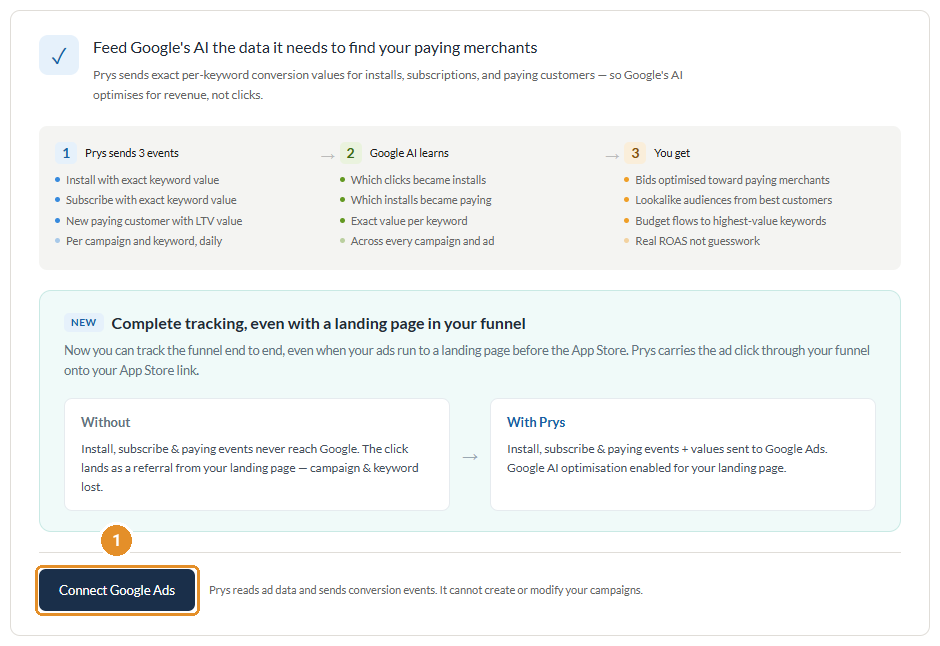
Go to Google Ads in the Prys menu.
1. Click Connect Google Ads (1). Google opens.
Sign in to Google
1. Choose your Google login.
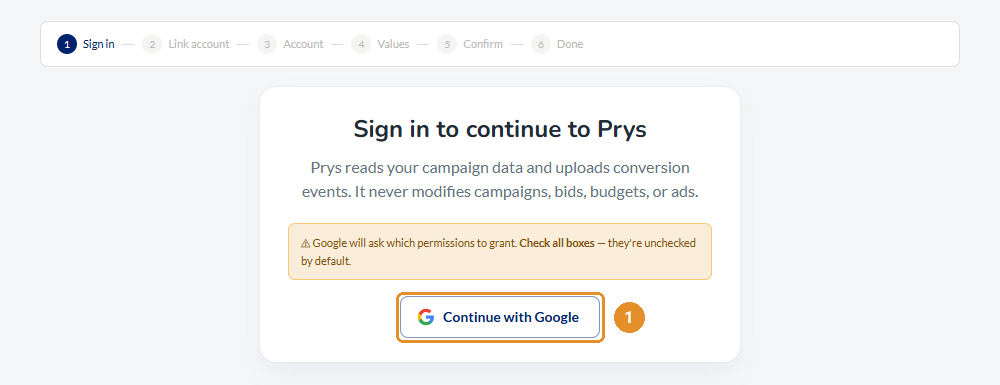
2. Google asks which permissions to give Prys. Tick every box. They're unticked by default, and Prys can't connect without them.
If Prys shows Sign in to continue to Prys (for example because a box was left unticked), click Continue with Google (1) and tick every box this time.
Accept the Prys manager link
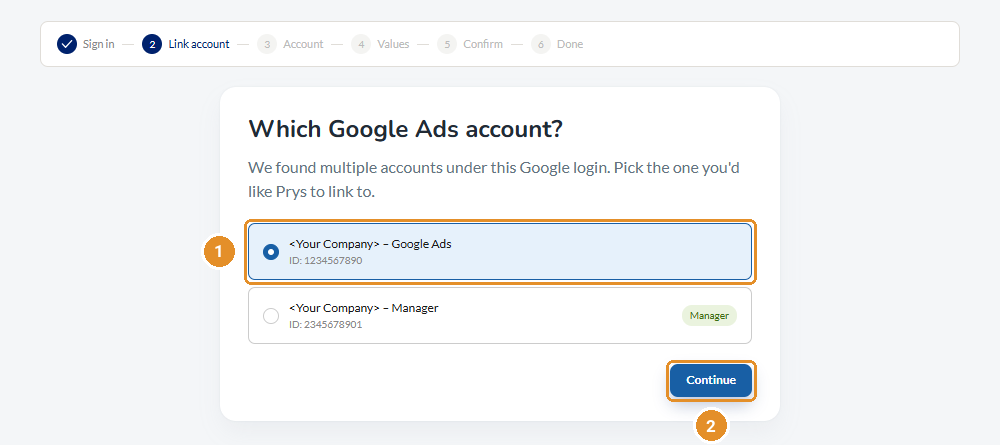
Prys sends a link request from its manager account (ID 438-984-6762) to your Google Ads account. You accept it once. If your Google login has several Google Ads accounts, Prys first asks which one to link: pick it (1) and click Continue (2).
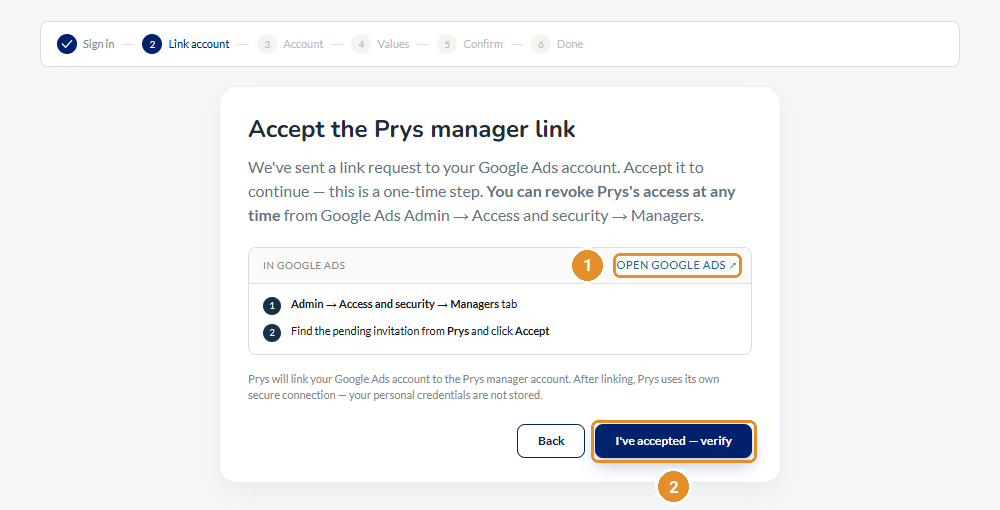
1. Click Open Google Ads (1). In Google Ads, go to Admin › Access and security › Managers, find the pending invitation from Prys and click Accept.
2. Back in Prys, click I've accepted — verify (2).
Pick the account Prys sends conversions to
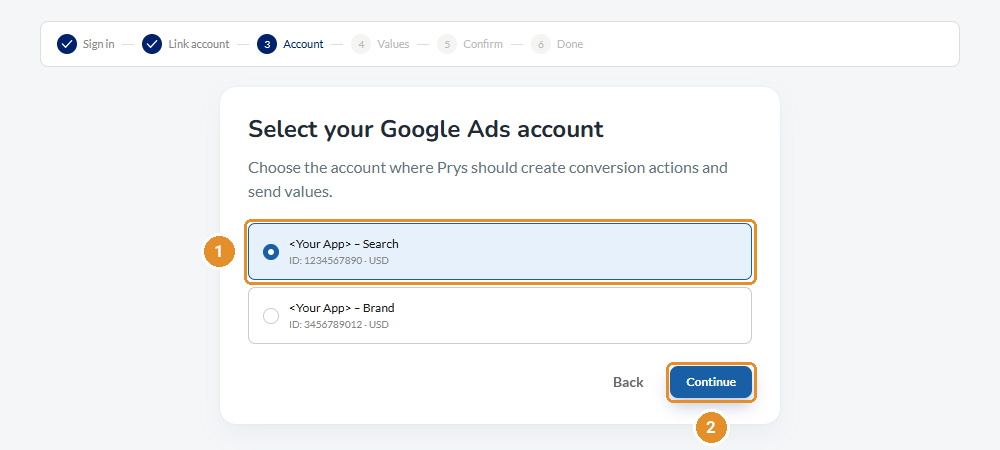
1. Pick the account that runs your app's ads (1). If it already has conversion actions from Prys, they're reused.
2. Click Continue (2).
Choose the values
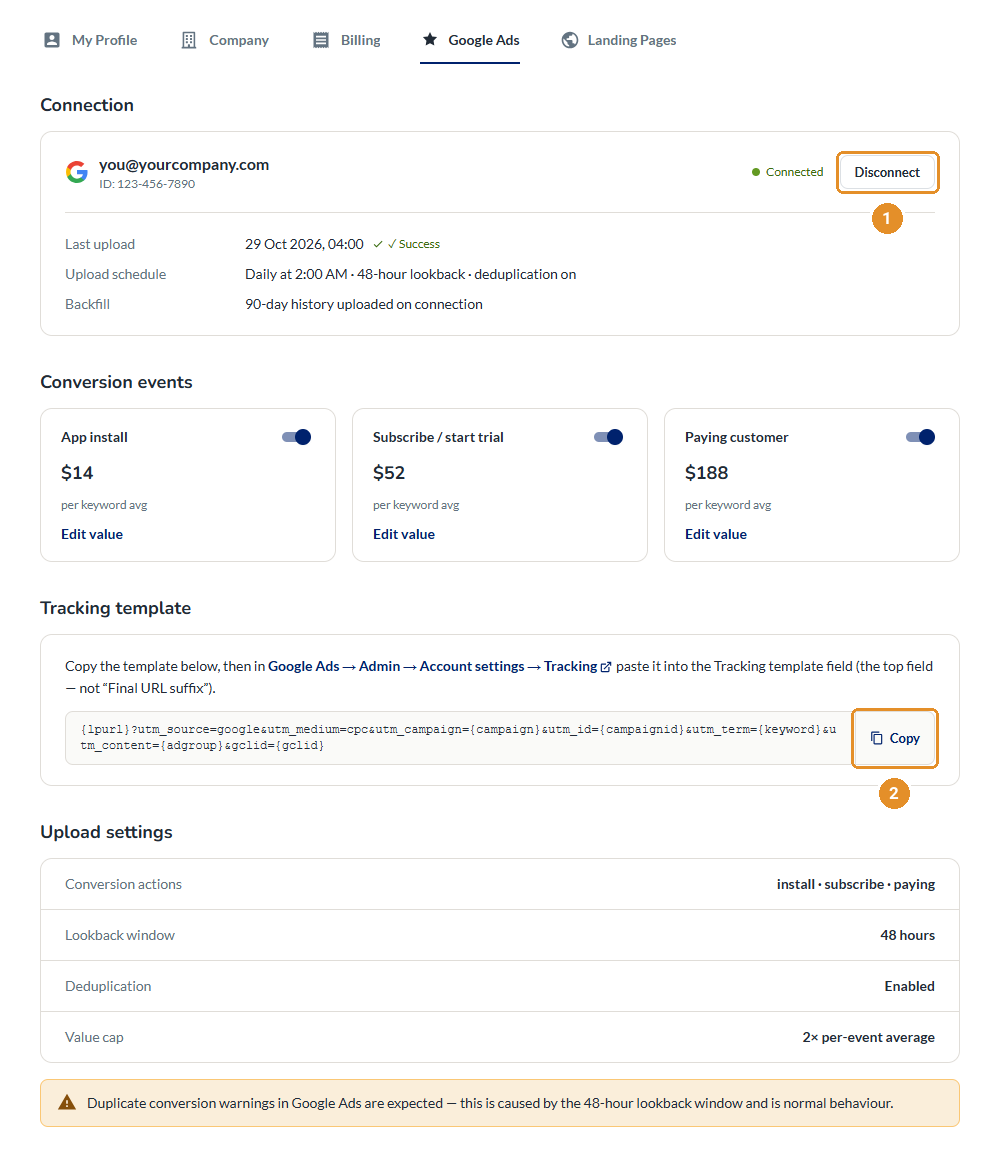
Prys sends three conversion events: App install, Subscribe / start trial and Paying customer. By default each one carries the value Prys measured for that keyword (Send value / keyword).
1. Keep each event On (1). Turn one off only if you don't want Google to see it.
2. To send a fixed amount instead, choose Send custom value (2) and type it.
3. Click Continue (3).
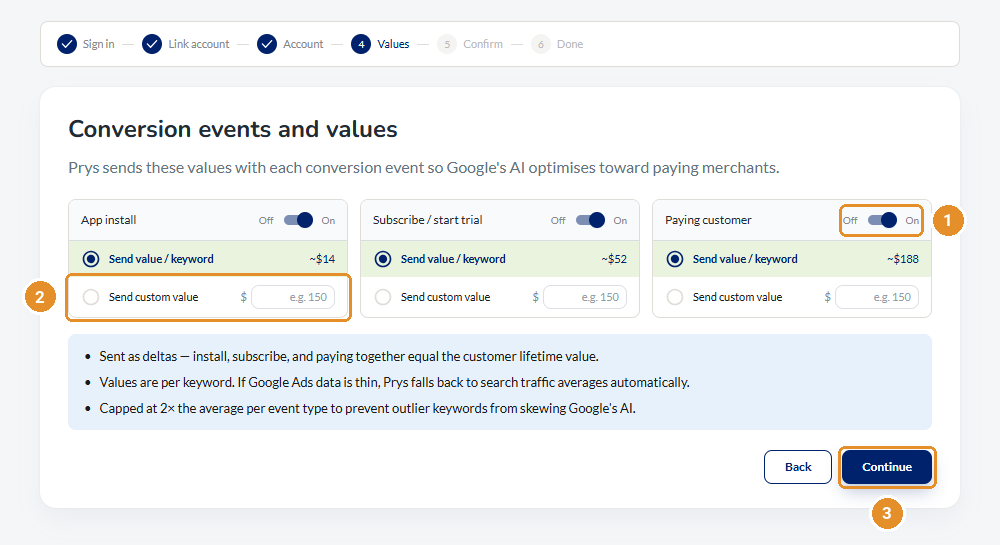
The three values add up to a customer's lifetime value. Each one is capped at 2× the average for that event, so one outlier keyword can't skew Google's bidding.
Add the tracking template and confirm
1. Click Copy (1) to copy the Prys tracking template.
2. Click the Google Ads › Admin › Account settings › Tracking link (2). In Google Ads, paste the template into the Tracking template field (the top field, not Final URL suffix) and save. Prys then checks your Google Ads account for the template: Connect and start uploading stays off until it finds it.
3. Back in Prys, tick the box (3) to confirm you've added the template.
4. Click Connect and start uploading (4).
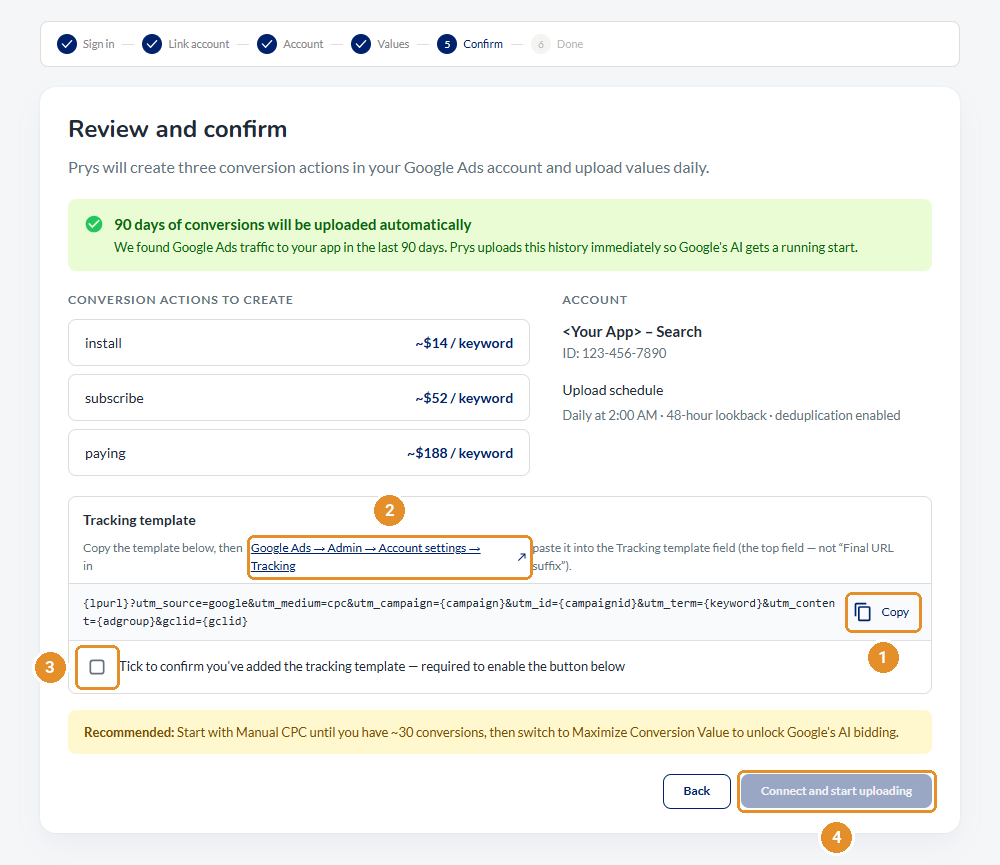
The template is:
```
{lpurl}?utm_source=google&utm_medium=cpc&utm_campaign={campaign}&utm_id={campaignid}&utm_term={keyword}&utm_content={adgroup}&gclid={gclid}
```
It makes every ad click carry its campaign, keyword and Google click ID, so Prys can match the install to the click and send it to Google.
Done
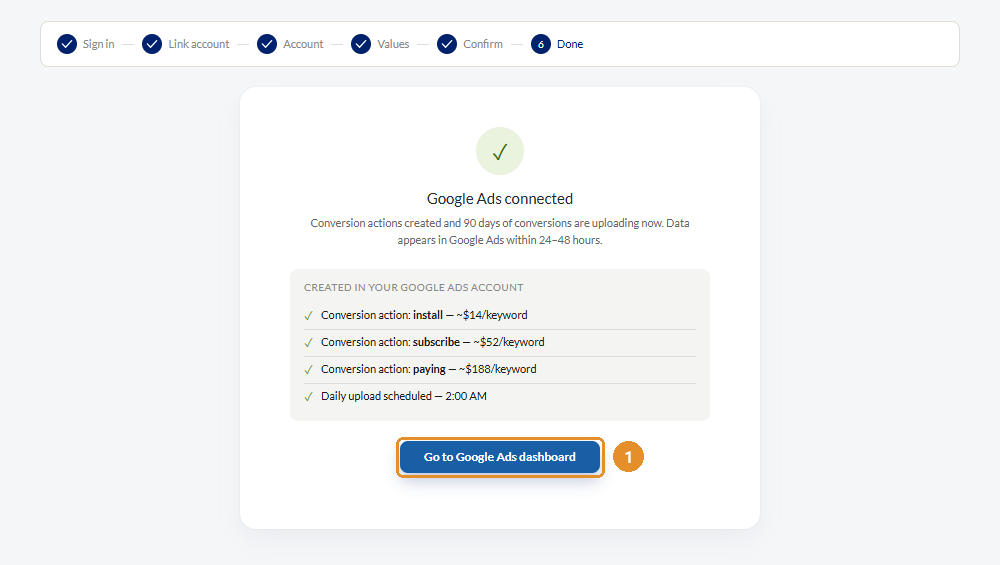
1. Click Go to Google Ads dashboard (1) to see the Google Ads page.
What happens next
- Prys creates three conversion actions in your Google Ads account, named
prys_install,prys_subscribeandprys_paying(Prys shows them as install, subscribe and paying). - If Prys found Google Ads traffic to your app in the last 90 days, it uploads those 90 days of conversions straight away, so Google's bidding gets a running start.
- After that, Prys uploads once a day. Uploaded conversions show in Google Ads within 24–48 hours.
- Bidding tip: start with Manual CPC until you have about 30 conversions, then switch to Maximize conversion value.
- Google Ads will usually show fewer conversions than Prys. See Why Google Ads shows fewer conversions than Prys.
Change or disconnect
Go to Settings › Google Ads. There you can:
- see the last upload and whether it worked,
- turn each conversion event on or off and Edit value,
- copy the tracking template again (2),
- Disconnect (1). Prys stops uploading. The conversion actions stay in your Google Ads account, and you can remove the Prys manager link in Google Ads under Admin › Access and security › Managers.
Moving from the Google Sheet
If you send conversion values to Google Ads through the Prys Google Sheet today, the Google Ads page shows Set up Google Ads via OAuth. Follow the steps above. The Sheet stops automatically once you connect, so conversions aren't sent twice.
If something goes wrong
- Prys can't connect after you sign in. You probably left a permission box unticked. Start again and tick every box.
- Link not confirmed yet. Google hasn't recorded your acceptance yet. Check Admin › Access and security › Managers in Google Ads, accept the Prys invitation, wait a minute and click I've accepted — verify again.
- You declined the invitation, or it expired. Click Back and go through the steps again, so Prys sends a new request.
- Your Google login doesn't see the account. Ask an admin of that Google Ads account to give your login admin access, or to do these steps.
- Duplicate conversion warnings in Google Ads. They're expected. Prys re-sends the last 48 hours on every upload so late events aren't missed, and Google removes the duplicates.
- We couldn't find a tracking template on your account. Paste the template into the Tracking template field, save, then tick the box again.
- Your tracking template won't work with Prys tracking. Replace it with the Prys template, then tick the box again.
- No conversions in Google Ads after 2 days. Check that the tracking template is in the Tracking template field in Google Ads, then see Why Google Ads shows fewer conversions than Prys.
Related posts