
Track ads that land on your own website
If your ads send people to your own website or a funnel before your App Store listing, the App Store can't see which ad they came from. The install then shows as a referral from your website, and the campaign, keyword and Google click ID are lost. The Prys tracking snippet fixes that. Put it on those pages, and it carries the ad click through to your listing, so Prys can tie the install to the campaign and keyword, and send it to Google Ads (Connect Google Ads). One snippet works for Google and Meta ads.
You don't need this if your ads go straight to your App Store listing.
Before you start
- You, or your developer, need to be able to add a script to your website, in Google Tag Manager or in the site's global header.
- Have the address of every page your ads point to.
Set it up
Go to Settings › Landing Pages.
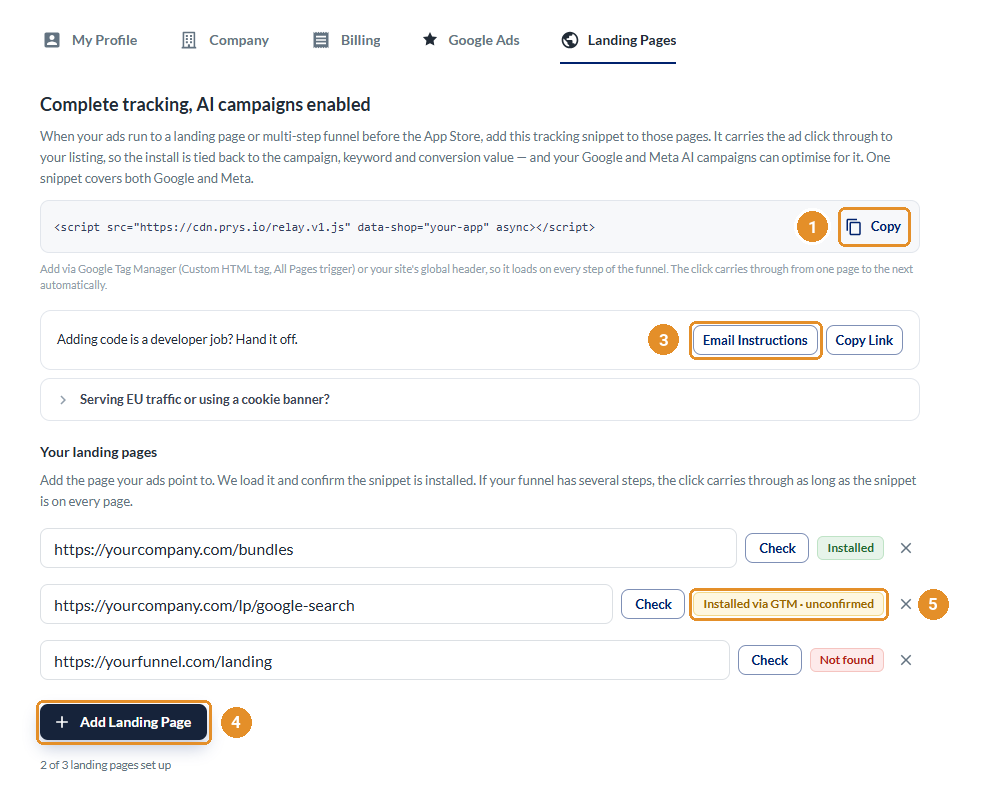
1. Click Copy (1) to copy the snippet.
2. Add it to every page of the funnel, before the App Store:
- Google Tag Manager: a new Custom HTML tag with the snippet, on the All Pages trigger. Publish the container.
- Or your site's global header, so it loads on every page.
3. Is adding code your developer's job? Click Email Instructions (3), type their email and click Send. Or click Copy Link: it copies the same instructions as text (there is no link), so you can paste them into a message.
If your funnel has several pages, the snippet must be on every one of them. The click then carries from page to page by itself.
Add your landing pages and check them
4. Click Add Landing Page (4), paste the address your ads point to, and click Check. Prys loads the page and looks for the snippet. Do this for every landing page.
5. Read the status next to each page (5):
- Installed: Prys found the snippet on the page, or in the page's published Google Tag Manager container.
- Installed via GTM · unconfirmed: the page loads Google Tag Manager, but Prys couldn't read the container. If your tag is live, it works. Click Check again later.
- Not found: the snippet isn't on the page or in its published Google Tag Manager container. Add it, publish, and click Check again.
- Not checked: you added the page but haven't clicked Check yet.
Under the list, Prys shows how many of your landing pages are set up, for example 2 of 3 landing pages set up. To remove a page, click the × next to it.
EU traffic and cookie banners
Click Serving EU traffic or using a cookie banner? and choose the case that fits:
- My cookie tool already blocks tags until consent. Keep the snippet as it is, and put it in your ads/marketing consent category in your cookie tool or Google Tag Manager, like your other ad tags.
- Keep attribution for visitors who consent after landing. Use the wait-mode snippet shown there, and have your developer call the line Prys shows the moment the visitor gives consent.
If something goes wrong
- Still Not found after you added it. Publish the Google Tag Manager container or the site change, open the page yourself to clear any cache, then click Check again. If you added it through Google Tag Manager, publish the container first: Prys reads the published container.
- This landing page is already added. The address is already in your list.
- Installs from your ads still show your website as the source. Check the snippet is on every page between the ad and the App Store, and that your links to the App Store go out from those pages.
- Google Ads still shows few conversions. See Why Google Ads shows fewer conversions than Prys.
Related posts