
Install attribution: send installs to Google Analytics
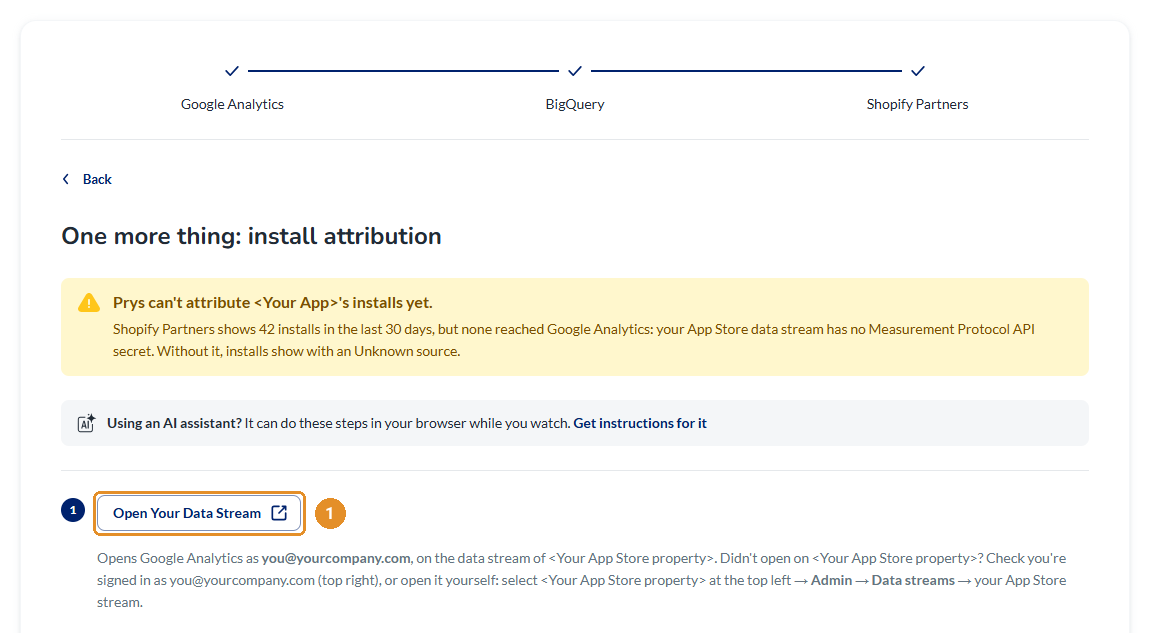
Shopify records every install of your app, but Google Analytics only sees installs when Shopify sends them there. Once it does, Prys can tie each install to the visit, source and keyword it came from. Without it, installs show in Prys with an Unknown source, and live data can't start.
To send them, your App Store listing needs two things from your Google Analytics data stream (the part of your property that collects your listing's traffic, under Admin › Data streams):
- the Measurement ID (G-…);
- a Measurement Protocol API secret (a code that lets Shopify send installs to Google Analytics).
When Prys asks for it
After you connect Shopify Partners, Prys checks whether your installs reach Google Analytics. If Shopify Partners shows installs, Google Analytics shows none, and your data stream has no API secret, Prys adds one page: One more thing: install attribution. Otherwise you never see it.
You can also open it from Settings › Company (Install attribution › Set it up or Fix it) or from the popup on your dashboard.
Before you start
You need Editor or Administrator on the Google Analytics property, and your own Shopify Partners user needs the Manage apps permission.
Create the API secret in Google Analytics
1. In Prys, click Open your data stream. It opens Google Analytics on your App Store data stream, signed in as you. Didn't open there? Open it yourself: select your property › Admin › Data streams › your App Store stream.
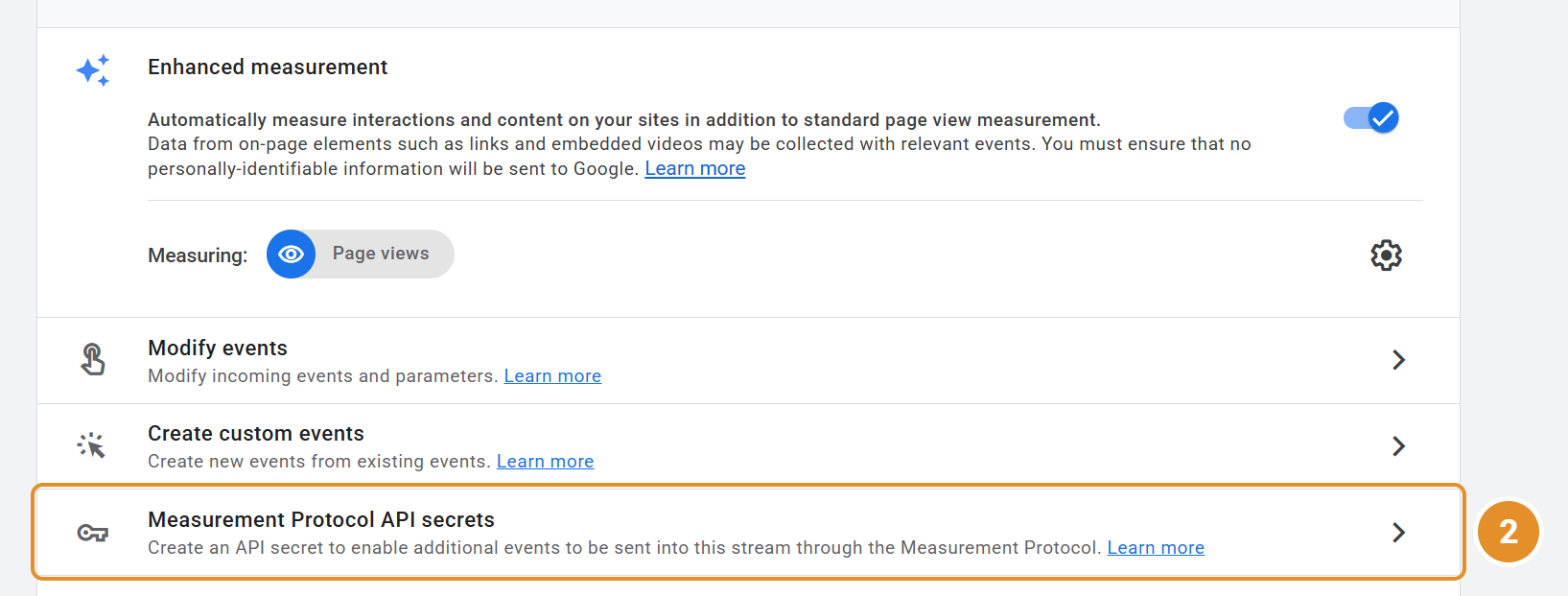
2. Click Measurement Protocol API secrets.
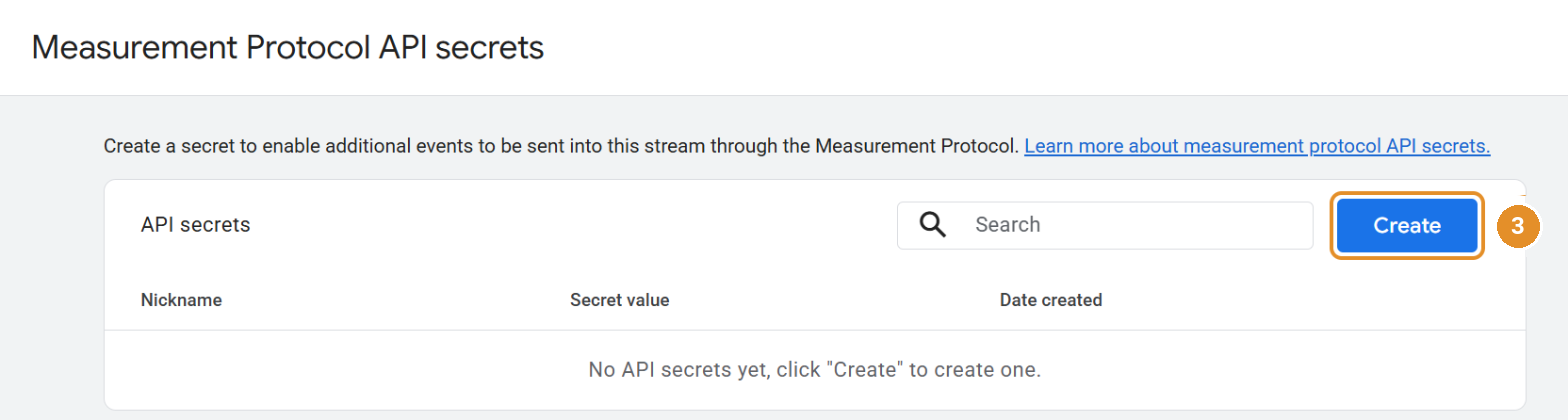
3. Click Create. If Google asks, review and acknowledge its terms. Enter Prys as the Nickname, click Create, and copy the Secret value.
Add it to your App Store listing
4. In Prys, click Open <Your App>'s listing in Shopify Partners, then click Tracking information in the listing editor's left menu. Didn't open the editor? Open it yourself: App distribution › All apps › your app › Distribution › Manage listing › your language's listing › Tracking information.

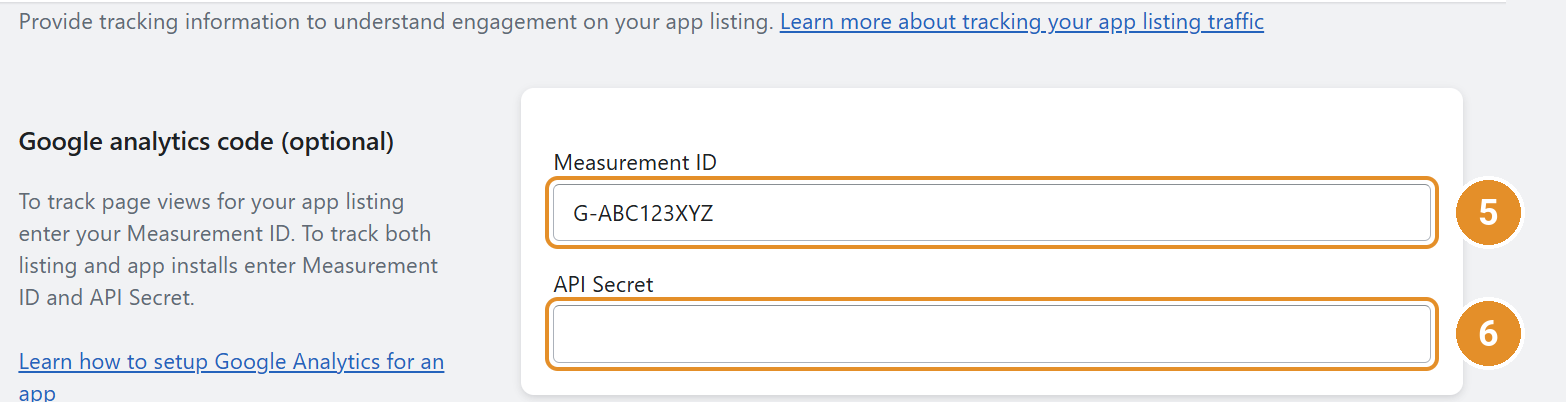
5. Under Google analytics code, check that Measurement ID shows your G- ID. If it's empty, paste it (it's at the top of your data stream's page in Google Analytics).
6. Paste the secret into API Secret.
7. Click Save at the bottom of the page.
8. Back in Prys, click Done. Prys confirms it after your next install. Until then, Settings shows Install attribution: waiting.

Not now? During setup, click Skip for now: Prys loads your data and shows a reminder on your dashboard later.
Shopify's own guide: Full-funnel app install attribution.
The reminder popup
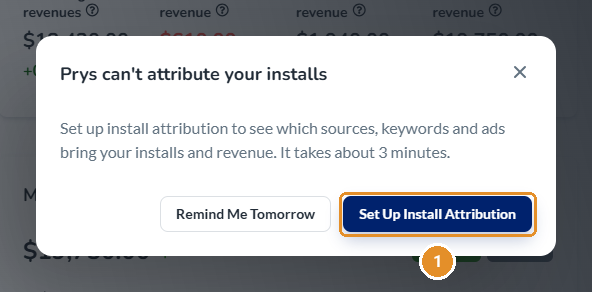
While Prys can't attribute your installs, your dashboard shows a popup once a day. Click Set up install attribution (1) to open the steps above, or Remind me tomorrow.
Installs with an Unknown source
Installs Prys can't tie to a visit show under the source Unknown: their install event reached Google Analytics without the installing shop's ID, or not at all. Once attribution works, new installs show by source. Earlier installs keep an Unknown source: Prys doesn't guess them.
If something goes wrong
- No Measurement Protocol row? You need Editor or Administrator on the property.
- Can't edit the listing? Your Shopify Partners user needs the Manage apps permission.
- Prys can't attribute <Your App>'s installs since …. Earlier installs reached Google Analytics, so the API secret was probably removed from your listing or deleted in Google Analytics. Create a new one and paste it again (steps 3–7).
- Prys still can't attribute <Your App>'s installs. New installs still have no shop ID in Google Analytics, so the secret in your listing is probably still missing or wrong. Check steps 1–7 once more, then click Done.
- Your other app's listing sends installs to <property>, but <Your App>'s listing doesn't. Create an API secret for this app and add it to its own listing.
Related posts
- How Prys counts: how sources and installs are matched