
Shopify Ads: add keywords, raise and lower bids
The Shopify Ads page tells you which keywords to add to your Shopify App Store ads, and which bids to raise or lower, based on what each keyword brings you in paying merchants, not just clicks. You make the changes in Shopify Ads yourself; Prys tells you which ones.
Before you start
- The recommendations are part of Prys Premium (Plans, trial and billing). On Free, the tables are blurred.
- You need a Shopify App Store ads campaign, and access to it in Shopify Partners.
Go to Shopify Ads in the Prys menu. At the top, Prys shows how many recommendations need your attention, in 3 tiles: Add keywords, Raise bids, Lower bids. Click a tile to jump to its table.
Add new keywords
Add new keywords to grow your reach lists valuable keywords from your search data that aren't in your Shopify Ads campaign yet, best first.
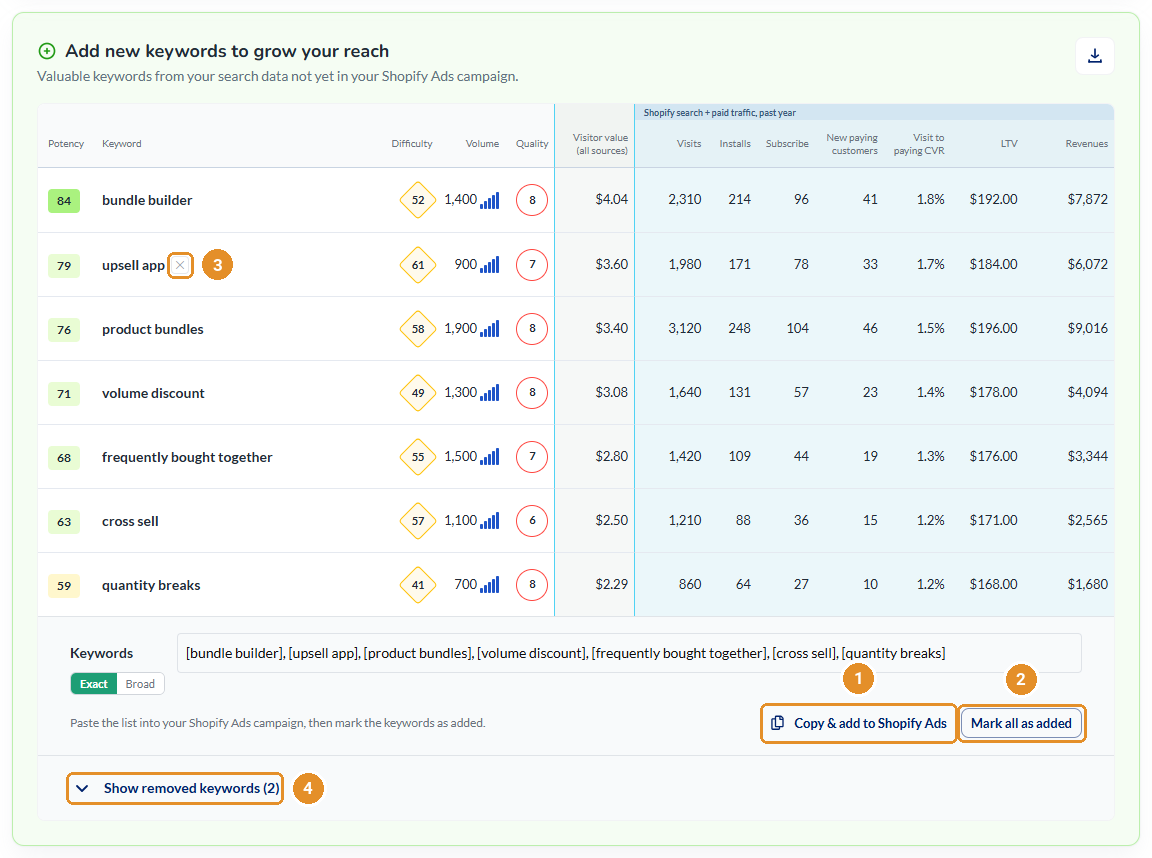
1. Choose Exact or Broad match (Prys writes the list in Shopify's format for it), click Copy & add to Shopify Ads (1), and paste the list into your campaign's keywords in Shopify Ads.
2. Click Mark all as added (2). These keywords leave the list and the next ones show.
Don't want a keyword? Click the × next to it (3). To see hidden keywords and bring one back, click Show removed keywords (4).
Raise and lower bids
- Raise bids to capture more traffic: keywords that bring paying merchants, where your bid is below the competition.
- Lower bids to reduce overspending: keywords where you bid above the competitive average but get little value.
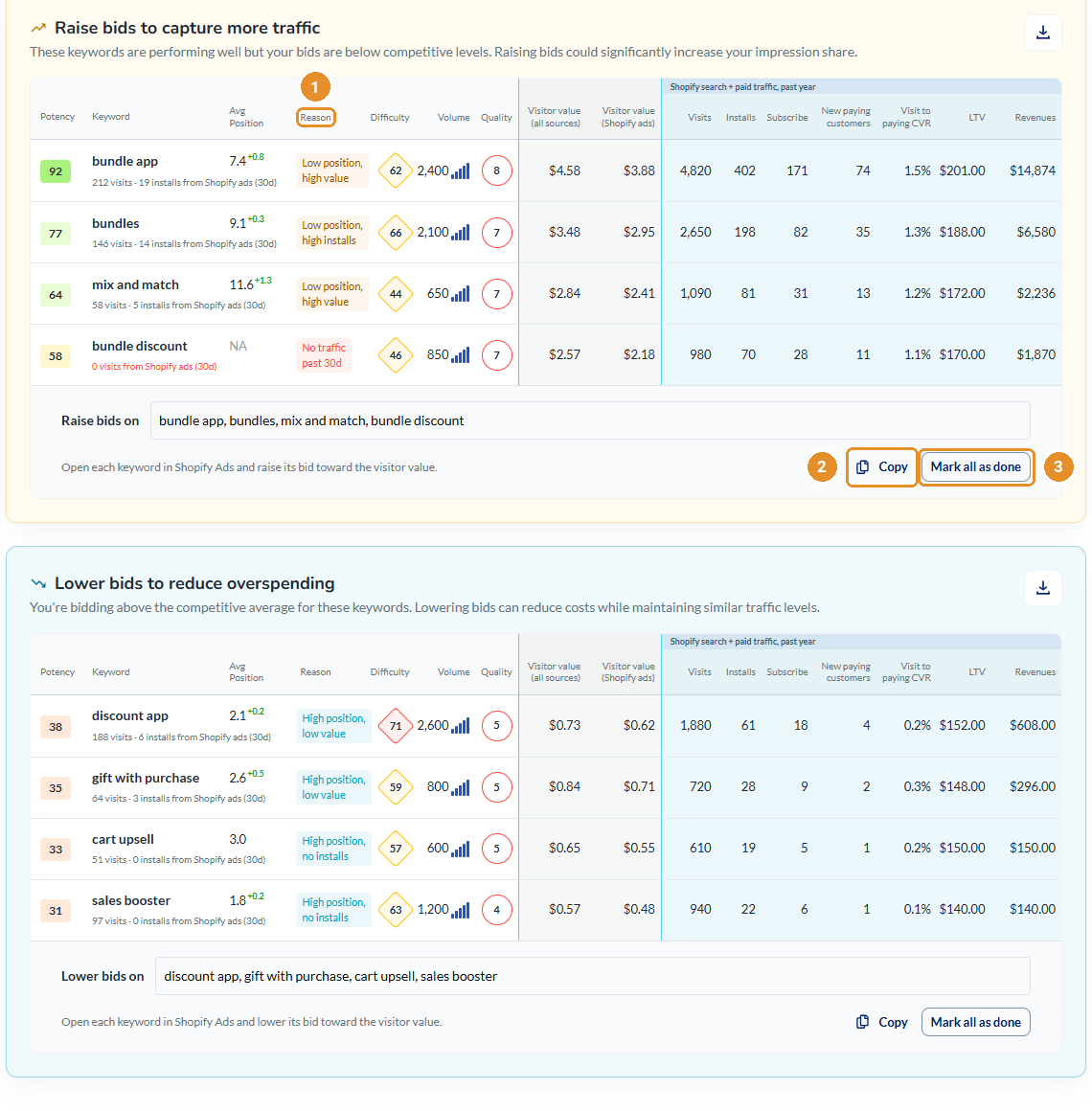
1. Read why each keyword is there in the Reason column (1), for example Low position, high value, No traffic past 30d or High position, no installs.
2. Click Copy (2) to copy the list. In Shopify Ads, open each keyword and raise (or lower) its bid toward its Visitor value: what one visit from that keyword is worth to you.
3. Click Mark all as done (3).
How long keywords stay hidden
- Marked as added or done: hidden for 30 days. If the same keyword comes back and you mark it again, it's hidden for 6 months.
- Removed with ×: Show removed keywords shows each one with the date it comes back (Hidden until …) or Hidden permanently. Click it to restore it.
- Changed your mind right away? Click Undo.
Reading the tables
- Potency: the keyword's revenue potential, 1–100: its visits × quality, lowered when it's hard to rank for.
- Difficulty: how hard it is to rank for the keyword. Lower is easier.
- Volume: how often it's searched.
- Quality: how well its visitors turn into revenue, paying customers, subscriptions and installs, against your best keyword.
- Visitor value (all sources) and (Shopify ads): expected revenue per visit from this keyword.
- Visits, Installs, Subscribe, New paying customers, LTV, Revenues: from Shopify search and paid traffic over the past year. Details in How Prys counts.
- Live Shopify ads performance shows every keyword in your campaign, for the period and countries you pick. Some columns are always global; the table says which under Not filtered by country (global).
If something goes wrong
- No new keywords to suggest right now. Prys needs more search data. New suggestions appear as it grows.
- Couldn't save your change. Try again. Your Shopify Ads campaign isn't affected: Prys never changes it.
Related posts