
Give Prys read access to BigQuery
You create a read-only account for Prys (a service account) in the Google Cloud project your BigQuery link sends data to, then give its key to Prys. The two roles it gets can only read: they can't change or delete anything.
Before you start
- Your property is linked to BigQuery (Link Google Analytics with BigQuery, and turn on live data).
- You're Owner of the Google Cloud project the link uses. Not you? Click Invite a colleague on this step (how inviting works).
- Your company already has a key for this project (for another app)? Prys offers Use the same key for <Your App>. Then you need no new key and don't need to be Owner: skip the steps below.
Create the service account
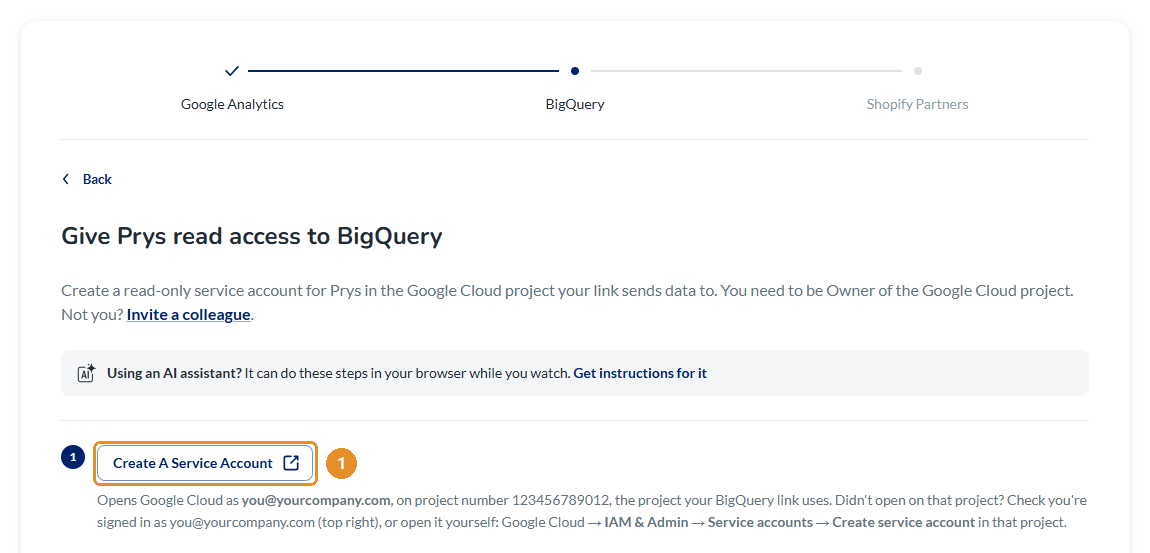
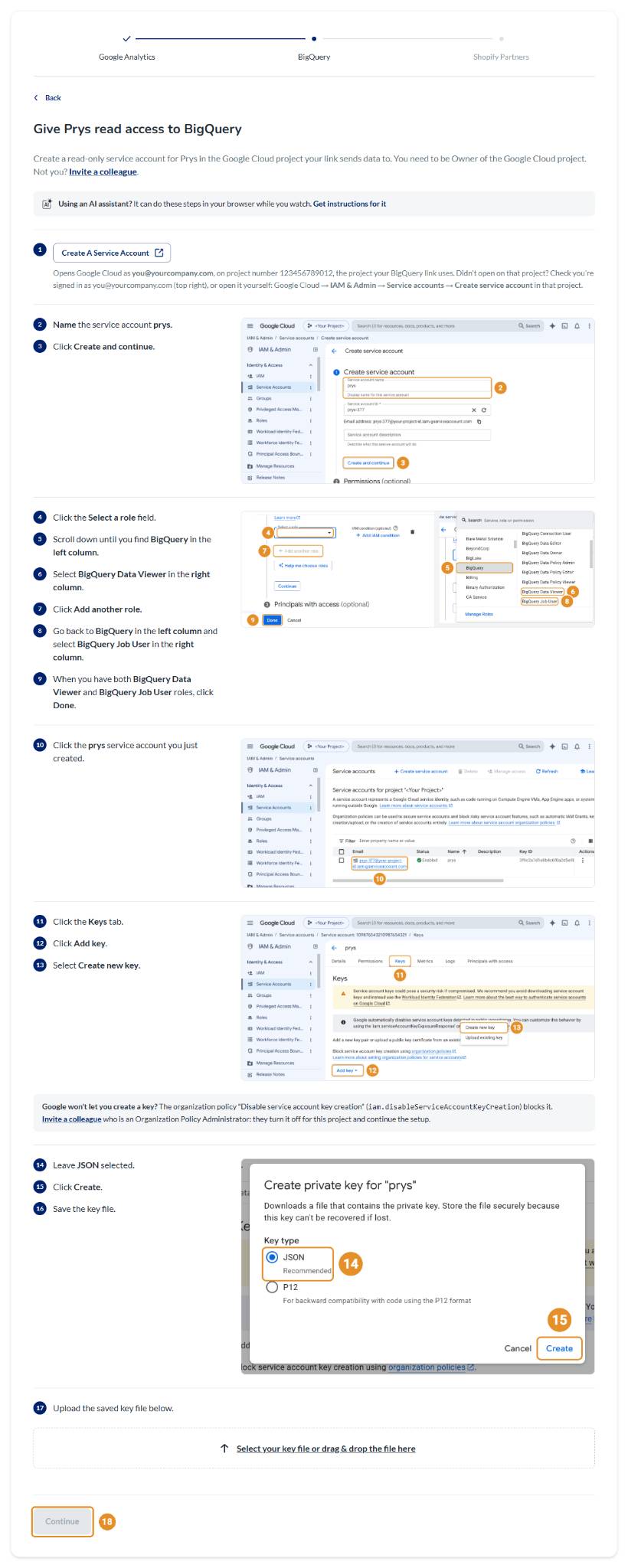
1. In Prys, on Give Prys read access to BigQuery, click Create a service account. It opens Google Cloud signed in as you, on the project your link uses. Didn't open on that project? Check you're signed in with the right Google account (top right). Or open it yourself: Google Cloud › IAM & Admin › Service accounts › Create service account, in that project.
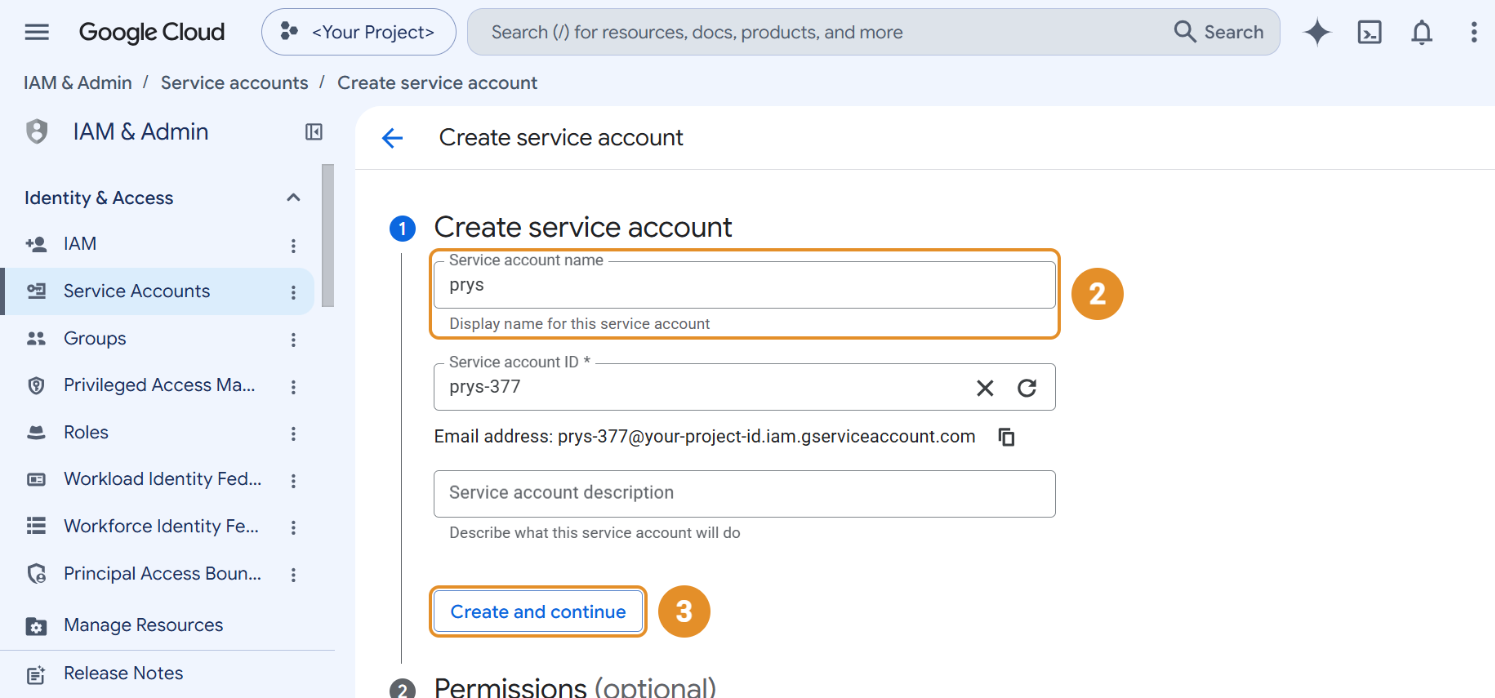
2. Name the service account prys.
3. Click Create and continue.
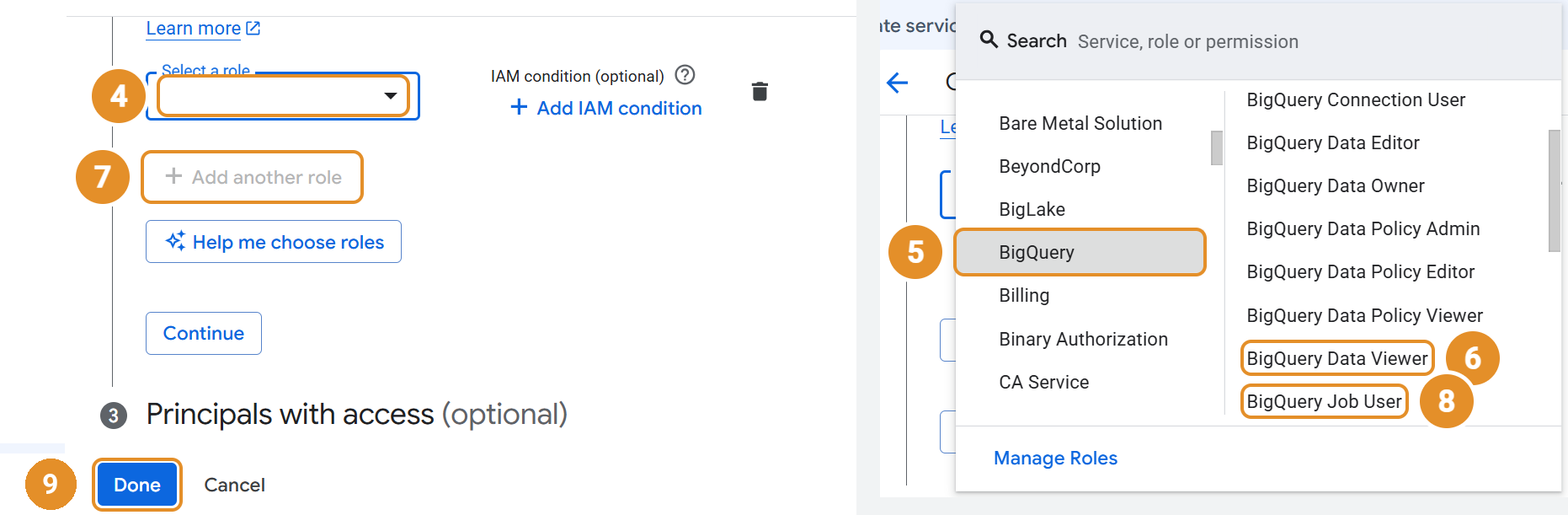
4. Click the Select a role field.
5. Scroll down until you find BigQuery in the left column.
6. Select BigQuery Data Viewer in the right column.
7. Click Add another role.
8. Go back to BigQuery in the left column and select BigQuery Job User.
9. When you have both roles, click Done.
Create the key
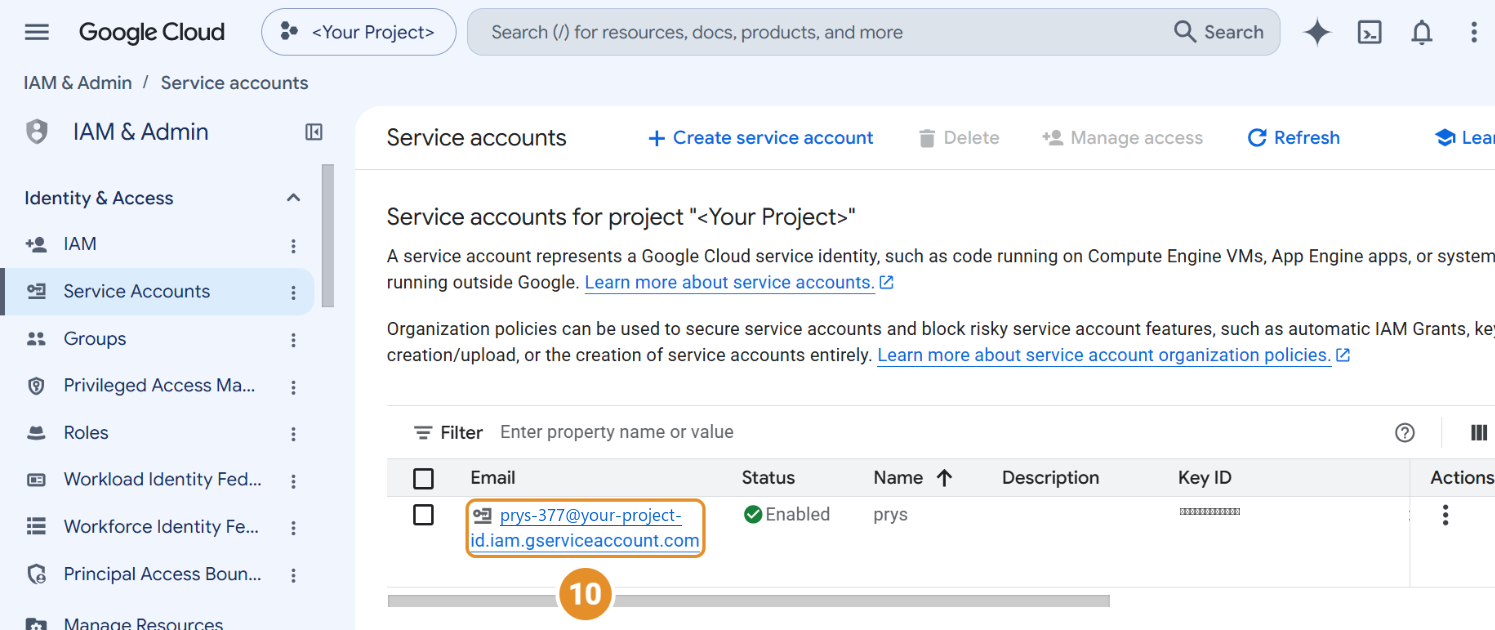
10. Click the prys service account you just created (its email starts with prys-).
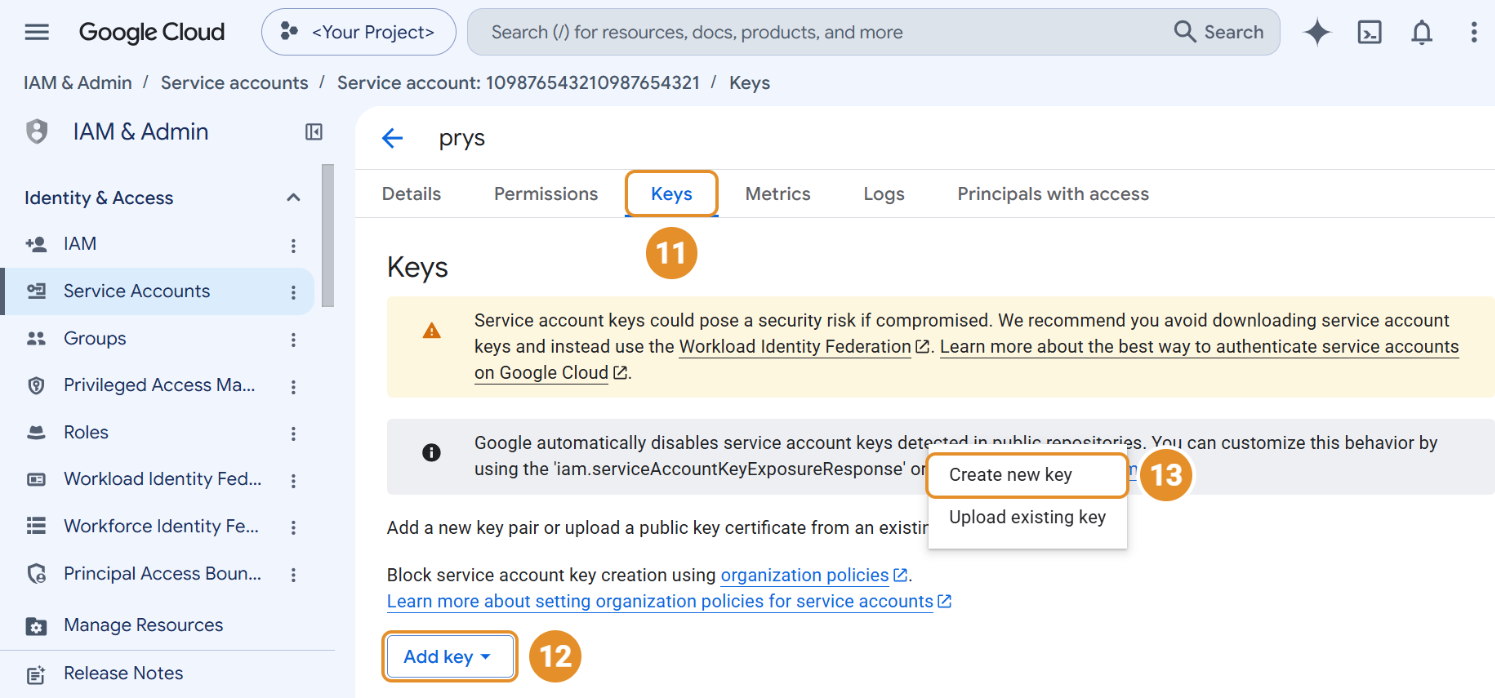
11. Click the Keys tab.
12. Click Add key.
13. Select Create new key.
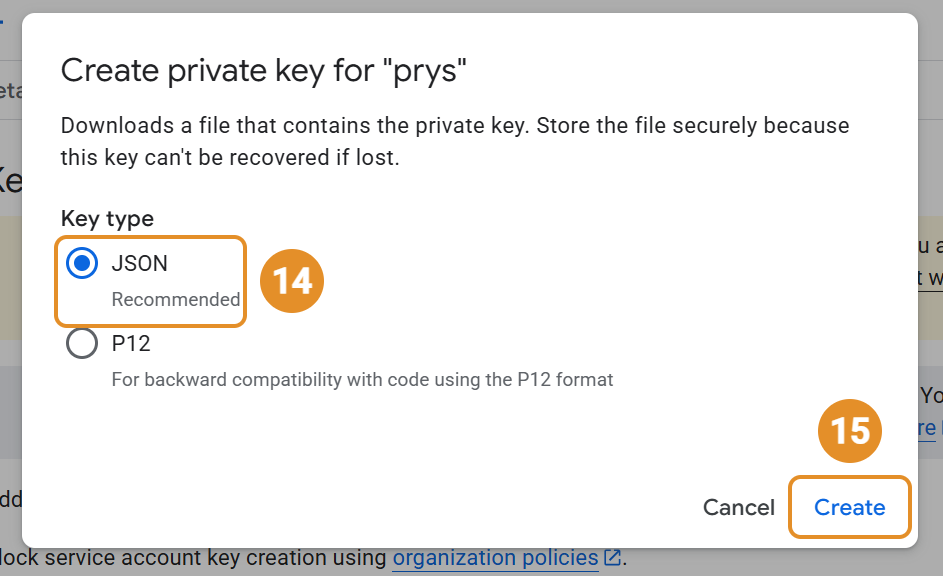
14. Leave JSON selected.
15. Click Create.
16. Save the key file. It usually downloads by itself: a .json file named after your project, in your Downloads folder.
Give the key to Prys
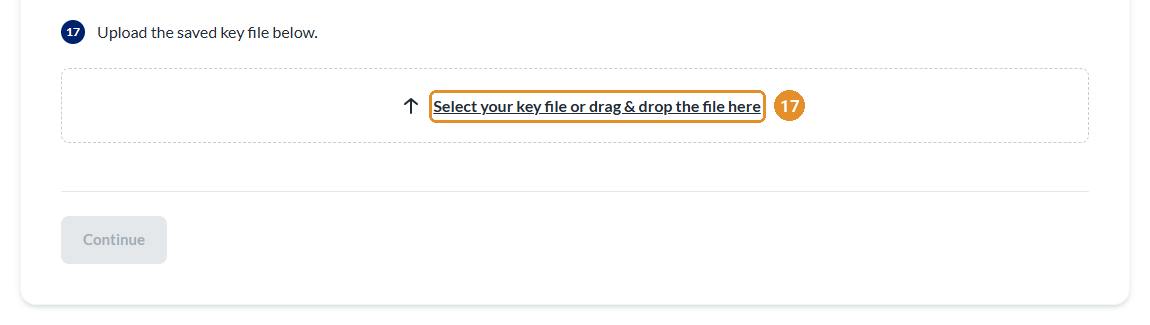
17. In Prys, drop the key file into Select your key file or drag & drop the file here. Prys checks it right away and shows the result under the box.
18. When Prys says Prys can read your BigQuery data., click Continue.
Keep the key file private: anyone who has it can read that project's BigQuery data.
Need a new key later? Go to Settings › Company › Prys's BigQuery key › Replace key. A new key for the same project doesn't reload your data.
Google won't let you create a key
At step 13, Google says key creation is disabled? Google Cloud organizations created on or after May 3, 2024 block keys by default, with the policy Disable service account key creation. Someone with the Organization Policy Administrator role on the organization must allow keys for this project. A project Owner alone can't.
In Prys, the tip under step 13 has Invite a colleague. The person you invite sees First, allow service account keys for project number … and does this:
1. Click Open organization policies for this project. Or in Google Cloud, open IAM & Admin › Organization policies and select the project.
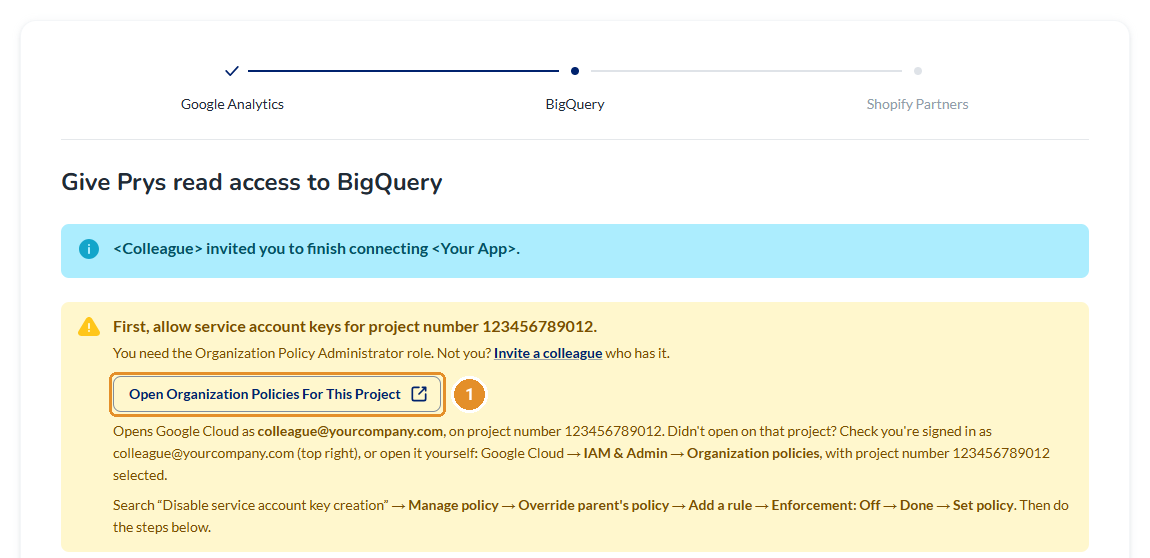
2. Search for Disable service account key creation (iam.disableServiceAccountKeyCreation, or iam.managed.disableServiceAccountKeyCreation in newer organizations).
3. Click Manage policy › Override parent's policy › Add a rule › Enforcement: Off › Done › Set policy.
It can take up to 15 minutes to apply. Then continue from step 12.
What Prys says after you drop the key
- Prys can read your BigQuery data. All set: click Continue.
- Prys's key works for <project>. together with Waiting for Google's first export to <project>. That's fine: the first export usually arrives within two days of linking. Click Continue.
- This is an OAuth client file, not a service account key. You downloaded a different file. Create a JSON key with steps 10–16, then drop the new file in.
- This file isn't a service account key. Same fix: create a JSON key with steps 10–16 and drop it in.
- Google didn't accept this key. Create a new key (steps 11–16) and drop it in.
- This key was deleted or disabled in Google Cloud. The prys service account still exists. Create a new key (steps 11–16) and drop it in.
- The prys service account was deleted in Google Cloud. Create it again with steps 1–16, then drop the new key in.
- The prys service account is disabled in Google Cloud. Same key, nothing to upload. In Service accounts, click ⋮ next to prys › Enable, then Check again.
- The prys service account is missing the BigQuery Job User role. (or the BigQuery Data Viewer role) Same key, nothing to upload. Open IAM, click the pencil next to prys › Add another role › BigQuery › the missing role › Save, then click Check again.
- This key can't see any Google Cloud project. The prys account has no BigQuery roles. In IAM, click Grant access, paste the prys account's email under New principals, add BigQuery Data Viewer and BigQuery Job User, click Save, then Check again.
- This key is from project …, but your link sends <Your App>'s data to project number …. Create the service account and key in the project your link uses (steps 1–16).
- Streaming is on, but no live data has reached BigQuery in two days. Billing is probably off for the project: turn it on. Not now? Click Continue: daily data doesn't need billing.
Related posts
- Next step: Connect Shopify Partners
- Previous step: Link Google Analytics with BigQuery