
Your team: invite colleagues, roles, request access
Invite a colleague during setup
Missing an access a step needs? Click Invite a colleague on that step:
1. Enter their work email under Their email (1). To invite several people, separate their emails with commas. The email preview, Can you help connect <Your App> to Prys?, says what they need for this step.
2. Click Send invite (2).
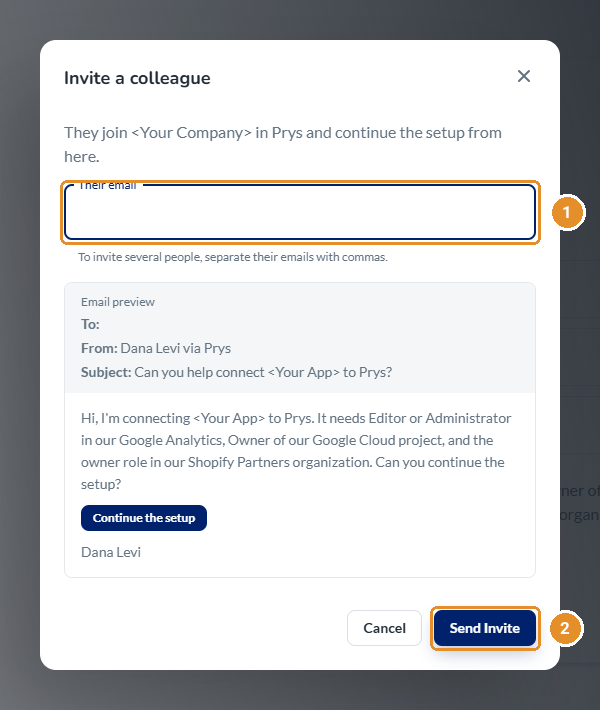
They join your company in Prys as a manager and continue the setup from the step you invited them on.
Add a user in Settings
Admins and managers can add users. Managers can add viewers only.
1. Go to Settings › User management.
2. Click New user.
3. Enter the User email and choose a User role.
4. Click Invite.
They get an email with a link to join. It must be opened with the exact email you invited.
Roles
Role | Who can add them | What they can do |
|---|---|---|
<Your Company> admin | Admins | Everything: add or remove admins, managers and viewers; app settings, connections, trial, payments, upgrade or downgrade (plans and billing) |
<Your Company> manager | Admins. A colleague invited during setup also joins as a manager | Everything except adding admins or managers in Settings, and changing or removing admins |
Viewer (all apps) | Admins and managers | See every app's data; change their own profile |
Viewer (<app name> app) | Admins and managers | See one app's data; change their own profile |
Connecting or changing anything (Google Ads, Email flows, Landing pages, Settings › Company, Billing) needs a manager or admin. Viewers see the data and their own profile.
Who becomes admin
Whoever finishes the setup of your company's first app becomes its admin. That includes a colleague you invited to finish it. Anyone who joined the company before that loses access until the new admin approves them. While the data loads, the new admin sees You're now <Your App>'s admin, so <Colleague>, who invited you, lost access to it. Approve <Colleague> gives them access again, as a viewer; Decline doesn't.
Request access to an app
When you add an app that's already set up in Prys (by your company or by another one), Prys shows <Your App> is already set up in <Your Company> or …by another company.
1. Click Request access (1). Prys emails the app's admins and managers.
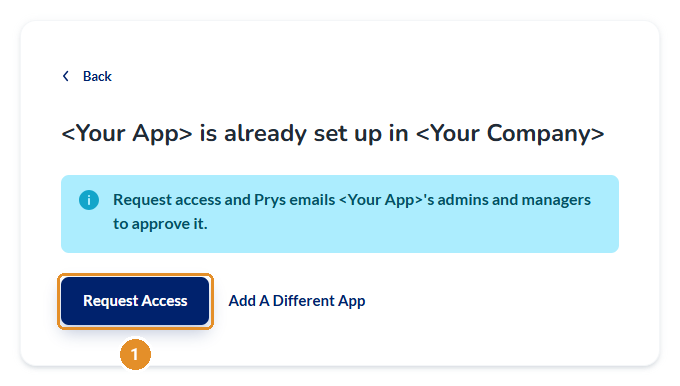
You see Request sent. When one of them approves, we email you and the app appears in your Prys. Log in before they answer, and you see Your access request is waiting.
Approve or decline a request (admins and managers)
1. Open the email and click Approve access. Prys shows Access request: <email> asked to see <Your App>'s data. Click Approve (1): they get viewer access to the app, and we email them.
2. Or click Decline (2): we email them that you declined.
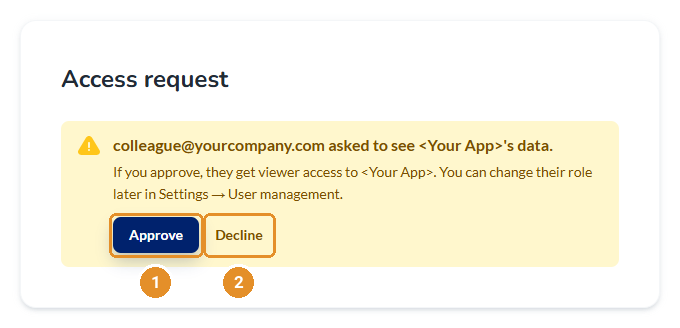
To change a role later, go to Settings › User management. Another admin or manager already handled it? Prys says This request was already handled.
Your details and password
- Name: My profile in the left menu.
- Company name: Settings › Company › Company name.
- Password, when logged in: My profile › Email me a reset link.
- Password, when you forgot it: on the login page, click Forgot password?, enter your email and click Email me a reset link. Each link works once, for about a day.
- Signed up with Google? Log in with Log in with Google. To also have a password, use My profile › Email me a link to set a password.
If something goes wrong
- The invite link doesn't work. They must sign up or log in with the exact email you invited. To send the email again, invite the same address again.
- <email> is already in <Your Company>. They can open the app from their own account. Click Send reminder to nudge them.
- You invited <email> on …. They haven't joined yet. Click Send again, or change the email to invite someone else.
- This invite link has expired or was already used. (seen by the person you invited) Send them a new invite. They can also sign up without it and request access.
Related posts
- Plans, trial and billing: who can change the plan