
Connect your app to Prys: what you need
Prys reads your app's data in three steps. You connect each one once. You make a few small changes yourself (a BigQuery link, a read-only account for Prys, a token). Prys itself only reads: it never changes your Google, Google Cloud or Shopify accounts.
Step | What Prys reads | What you need |
|---|---|---|
1. Google Analytics | Your App Store listing traffic: visits, sources, keywords, install clicks | Access to the Google Analytics property (where your listing's traffic is collected) |
2. BigQuery | A daily copy of that data, plus live data if you turn on streaming | Editor or Administrator on the property, and Owner of a Google Cloud project |
3. Shopify Partners | Installs, uninstalls, subscriptions and revenue | The owner role in your Shopify Partners organization |
Start
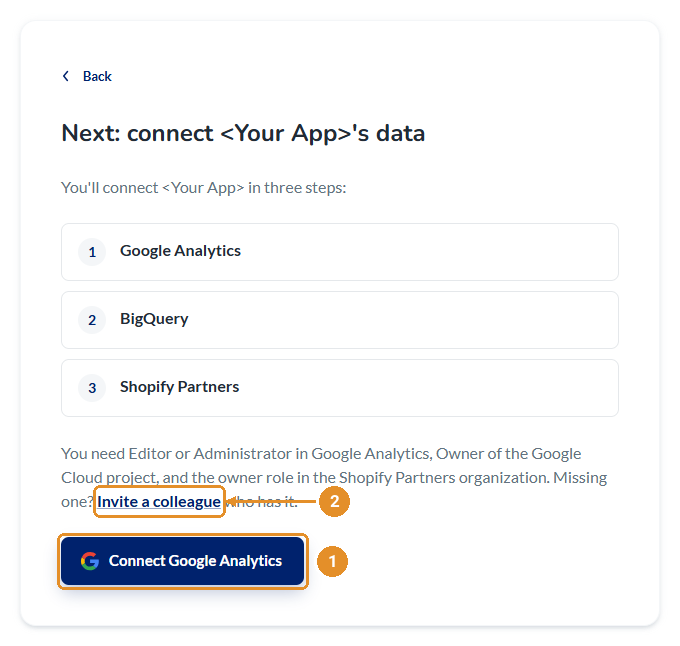
1. After you add your app, Prys shows Next: connect <Your App>'s data. Click Connect Google Analytics and follow the steps. A bar at the top of each page shows where you are: Google Analytics, BigQuery, Shopify Partners.
2. Missing one of the accesses above? Click Invite a colleague who has it (see Your team).
The steps in detail
- Step 2, BigQuery: Link Google Analytics with BigQuery (with streaming for live data) and Give Prys read access to BigQuery
- Step 3: Connect Shopify Partners
- Only if Prys asks: Install attribution
Then: When will I see my data?
Using an AI assistant?
On the long steps (the BigQuery link, streaming, the key, Shopify Partners and install attribution) Prys shows Using an AI assistant? with Get instructions for it. Copy the instructions into an assistant that can use your browser, like Claude or ChatGPT. It does the steps while you watch, and stops for the parts only you can do: turning on billing, dropping the key file, pasting the Shopify token. It never types passwords, payment details or tokens.
Related posts
- Setup and connection messages: every message Prys can show during setup, and its fix
- Plans, trial and billing: Premium is free under $1,000 MRR