
Choose your Google Analytics property
Prys needs the Google Analytics 4 property that receives your Shopify App Store listing traffic. It's the one whose Measurement ID (it starts with G-) is in your listing.
Steps
1. On Next: connect <Your App>'s data, click Connect Google Analytics and sign in with the Google account that has access to your app's Google Analytics. On Google's screen, allow Prys to see your Google Analytics data. Prys only reads.
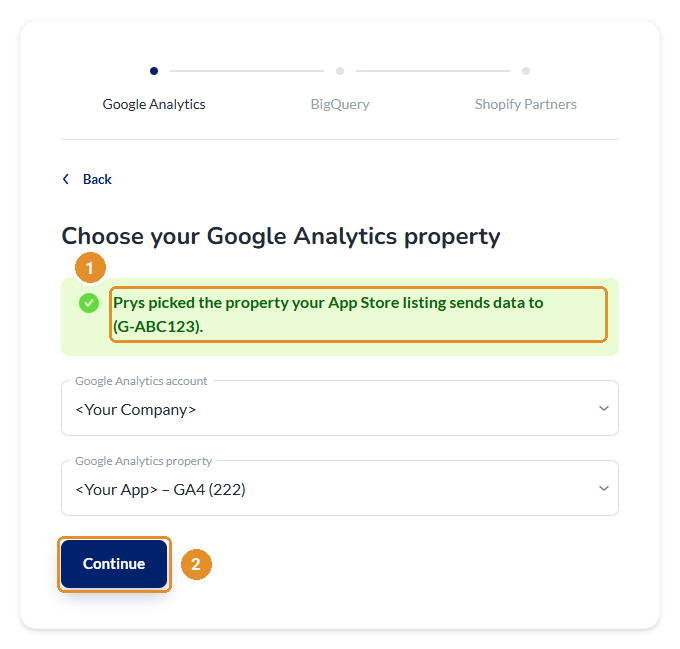
2. Prys reads the Measurement ID in your listing and picks the matching property: Prys picked the property your App Store listing sends data to (G-…). Check the Google Analytics account and Google Analytics property, then click Continue.
If Prys says Prys couldn't read your App Store listing just now., pick the property that receives your listing traffic yourself.
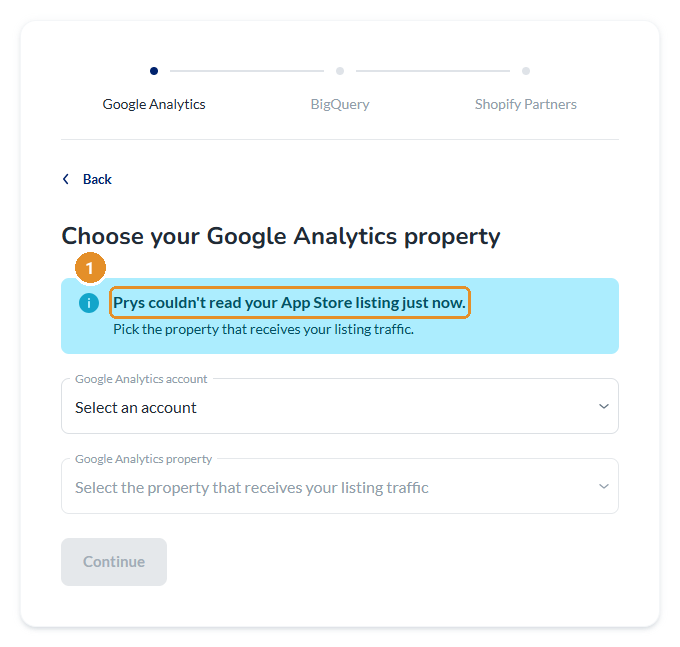
Which property is it?
- Find the ID in your listing: in Shopify Partners, go to App distribution › All apps › your app › Distribution › Manage listing › your language's listing › Tracking information. Under Google analytics code, the Measurement ID (G-…) is the one Prys uses.
- Find the property that has it: in Google Analytics, go to Admin › Data streams. Each stream shows its Measurement ID.
- No G- ID in your listing, or only an old UA- ID? Copy the Measurement ID from the top of your data stream's page in Google Analytics, paste it into the listing and save. Until you do, Google Analytics gets no listing traffic.
If something goes wrong
- You cancelled the Google sign-in. Click Sign in with Google again.
- Prys didn't get permission to see your Google Analytics. Click Sign in with Google again. On Google's screen, tick See and download your Google Analytics data, then click Continue.
- Google answered “Access blocked”. Your Google Workspace admin blocks Prys. Ask them to do this in the Admin console:
1. Open Security › Access and data control › API controls › Manage App Access › Configure new app.
2. Search for Prys's client ID. Prys shows it with a Copy button.
3. Set Prys to Trusted, then click Try again in Prys.
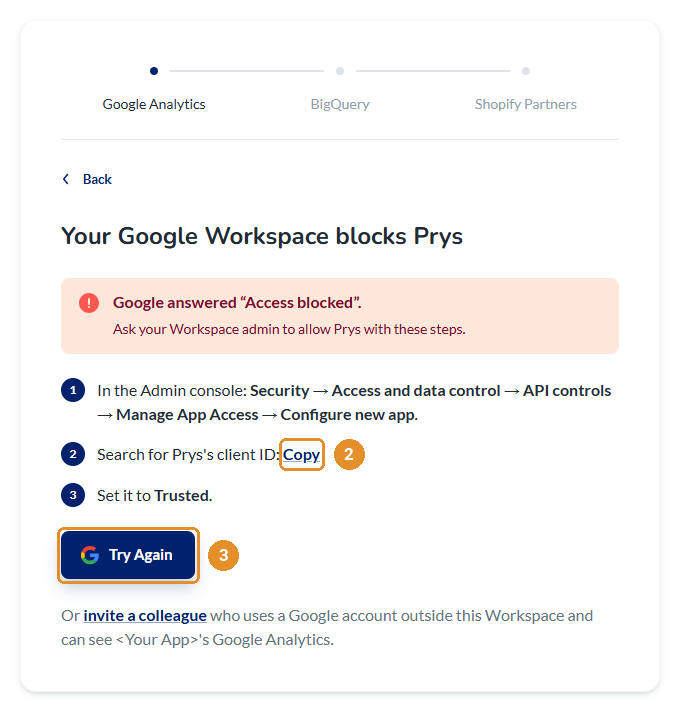
Or invite a colleague whose Google account is outside that Workspace (how inviting works).
- This Google account can't see any Google Analytics account. Sign in with the Google account that has your app's Google Analytics, or invite a colleague who has it.
- Your listing sends data to G-…, which is in a property this Google account can't see. Sign in with the account that has access to it, invite a colleague, or pick the property yourself.
- Your App Store listing has no Google Analytics Measurement ID (G-…) yet. Add it (see Which property is it? above), then click Check again.
- <email> can view <property>, but can't link it to BigQuery. The next step needs Editor or Administrator on the property. Already linked to BigQuery? You can continue. Otherwise, sign in with an account that has that access, or invite a colleague who does.
- This property doesn't receive your listing traffic. You picked a different property. Click Switch back to <property>. Continue with your choice only if you're sure: Prys may then show no visits or installs from your listing.
- Prys couldn't load your Google Analytics properties. Google didn't answer. Try again in a minute.
- Your Google sign-in expired. Sign in again. You come back to the same step.
- Hundreds of properties? Search by name or property ID.
Related posts
- Next step: Link Google Analytics with BigQuery