
Link Google Analytics with BigQuery, and turn on live data
Google Analytics shares its raw data with other tools only through BigQuery, Google's database. Once you link your property to BigQuery, Google Analytics sends it a copy of your data every day, and Prys reads that copy. With streaming on, it also sends each visit within minutes, so Prys can show live data.
Link early. Google sends data only from the day you link. Earlier days are never sent.
Before you start
You need:
- Editor or Administrator on the Google Analytics property.
- Owner of a Google Cloud project. A project is where your BigQuery data is kept, and creating one is free.
Not you? Click Invite a colleague on the step. They continue the setup from there (how inviting works).
No Google Cloud project yet? In Prys, Create a project (under step 3) opens Google Cloud for you. Or open Google Cloud, click the project picker at the top › New project, name it (for example <Your App> analytics) and click Create. BigQuery is turned on automatically in new projects.
Link your property
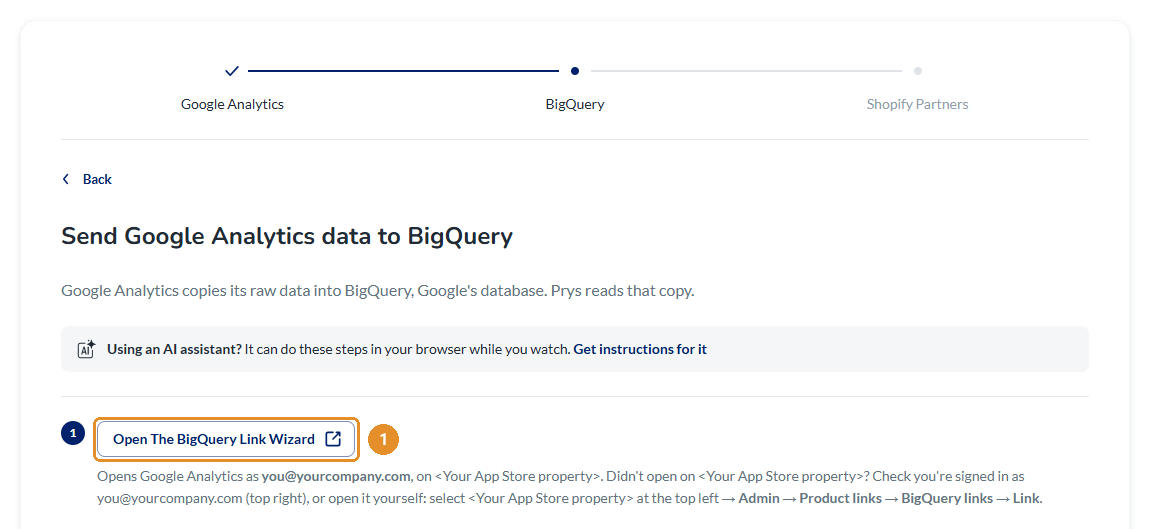
1. In Prys, on Send Google Analytics data to BigQuery, click Open the BigQuery link wizard. It opens Google Analytics on your property, signed in as you. Didn't open on your property? Check you're signed in with the right Google account (top right). Or open it yourself: select your property at the top left › Admin › Product links › BigQuery links › Link.
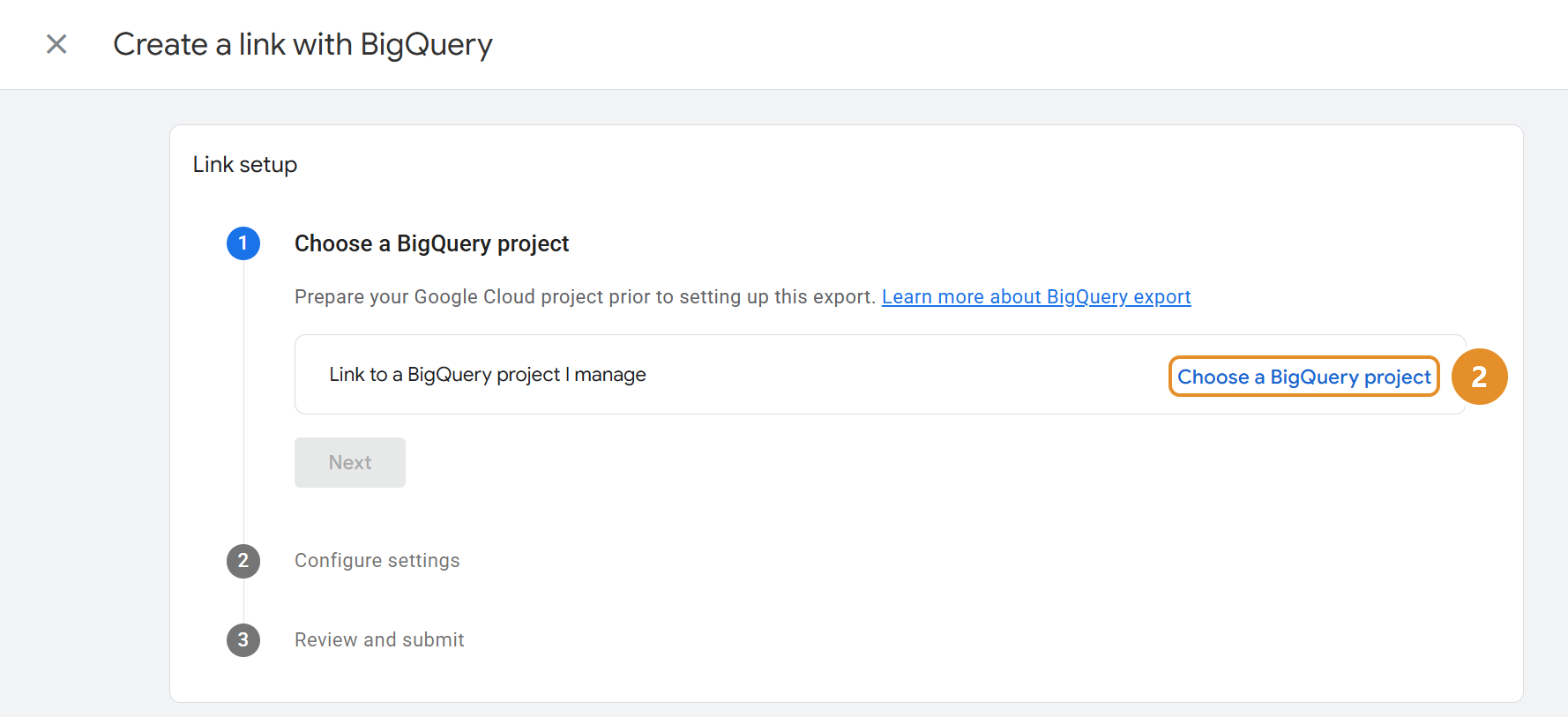
2. Click Choose a BigQuery project.
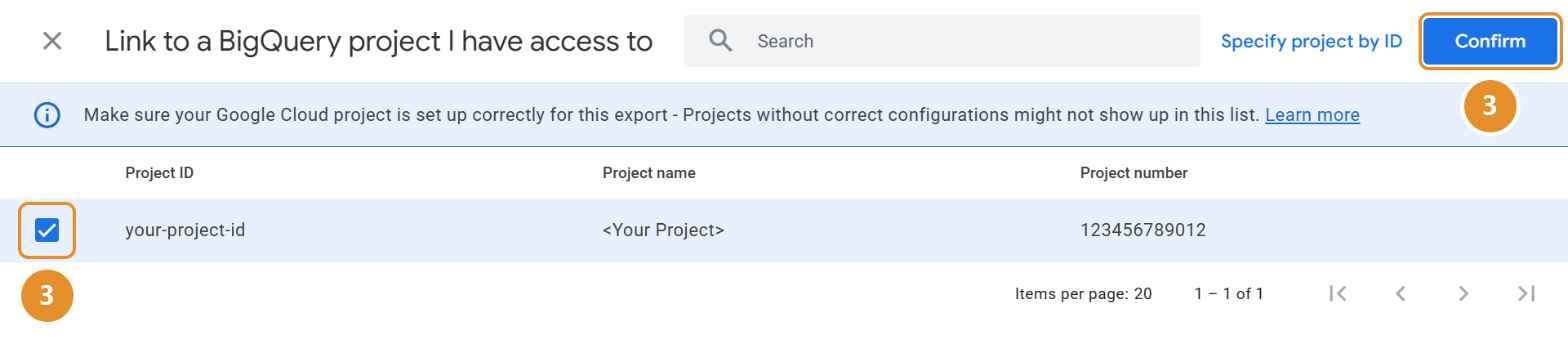
3. Tick the project Prys will read from, then click Confirm. Your project isn't in the list? Try Specify project by ID. Still missing? Your Google account isn't Owner of the project.
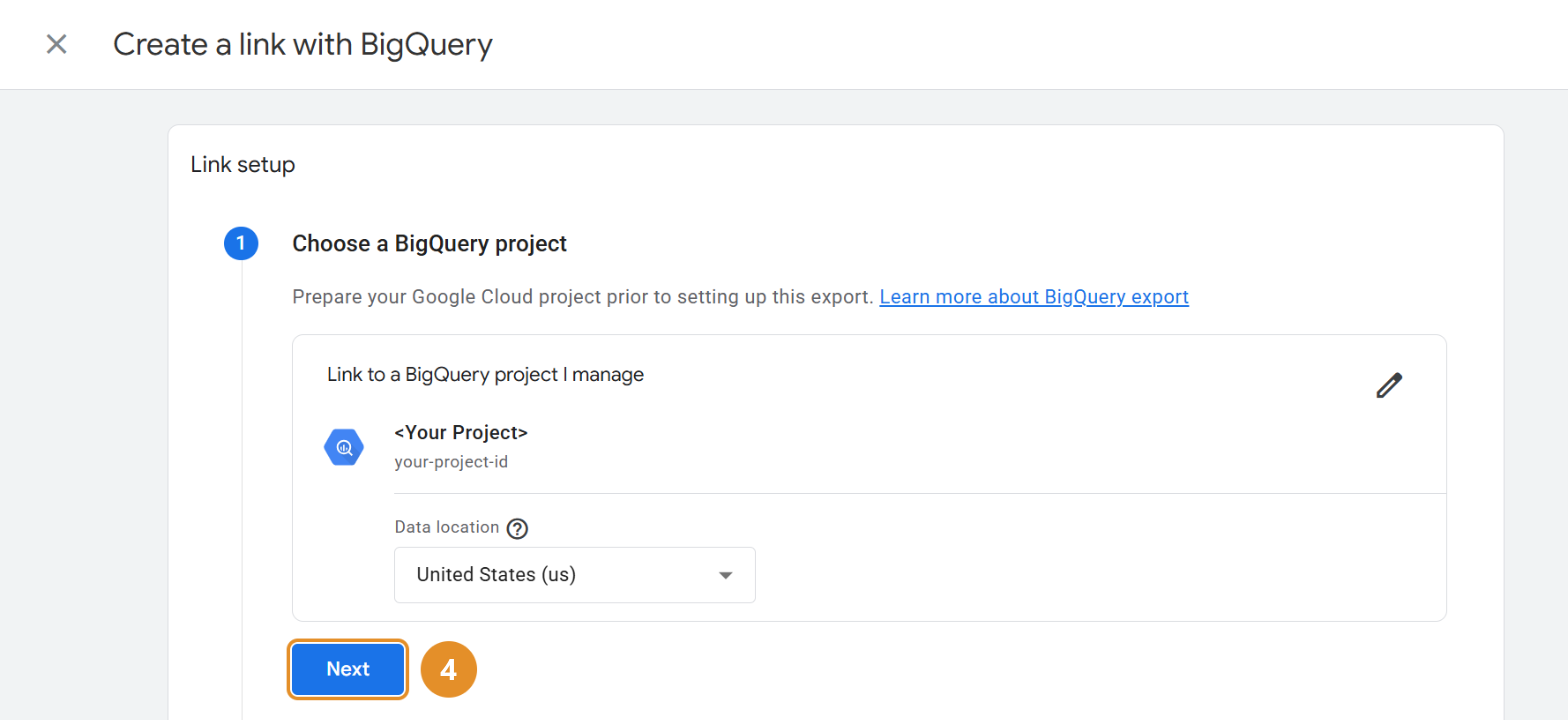
4. Choose the Data location. You can't change it later without deleting the link, which leaves a gap in your data. If your company keeps data in the EU, choose an EU region. Click Next. If you see Configure data streams and events, keep your App Store data stream and its events included (that's the default).
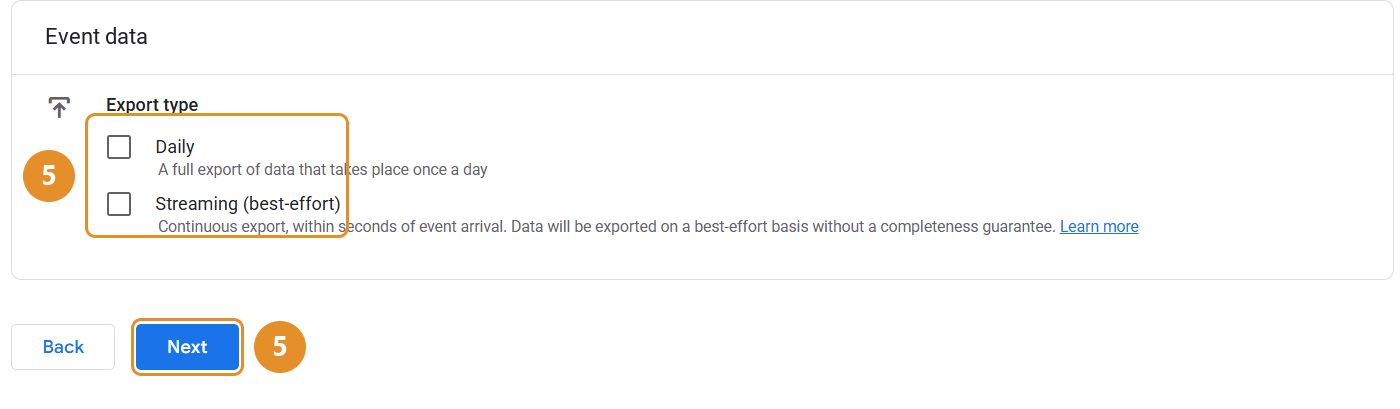
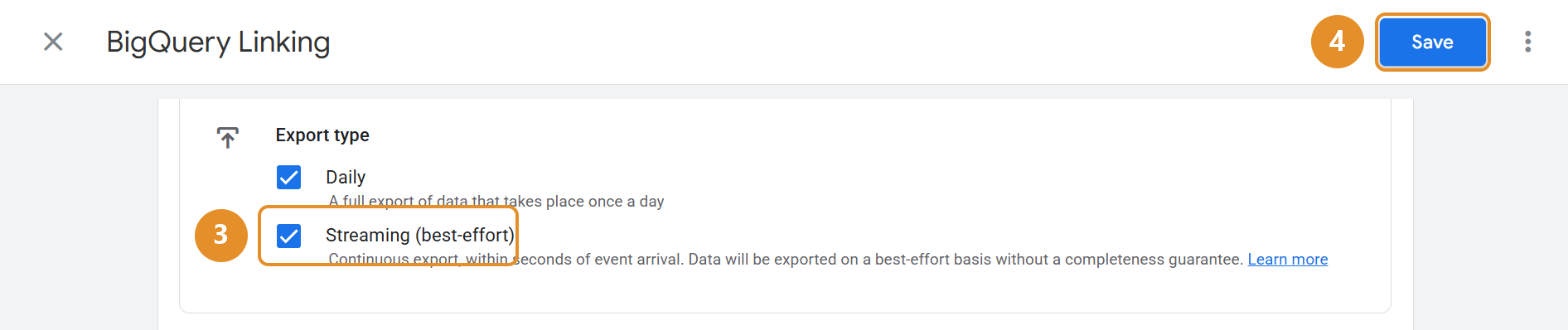
5. Under Event data › Export type, tick Daily. For live data, also tick Streaming (best-effort). Both boxes start unticked. Click Next.
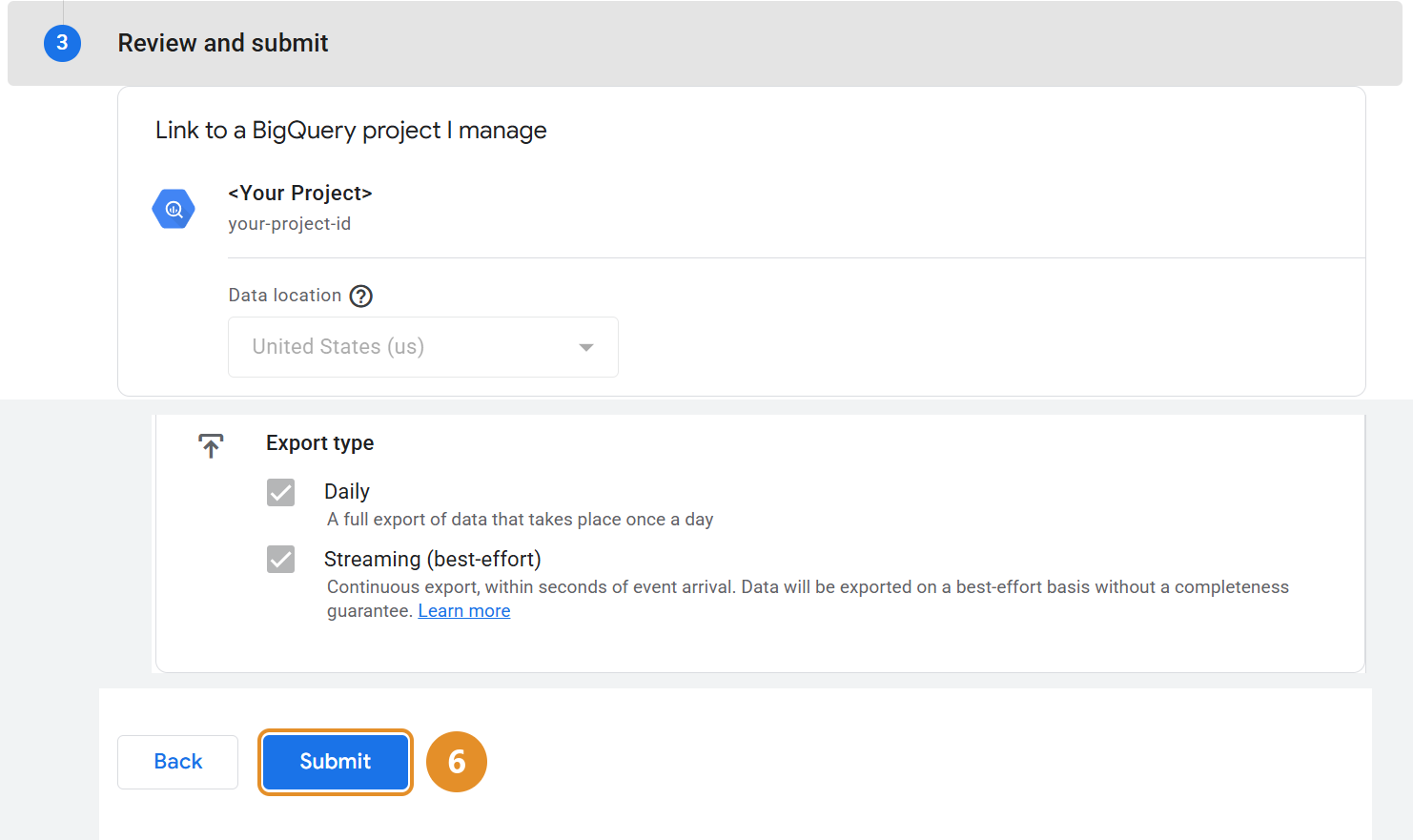
6. Click Submit.
7. Back in Prys, click Check link.

Google starts the export within 24 hours. The first daily copy usually reaches Prys within two days of linking.
Live data or daily data?
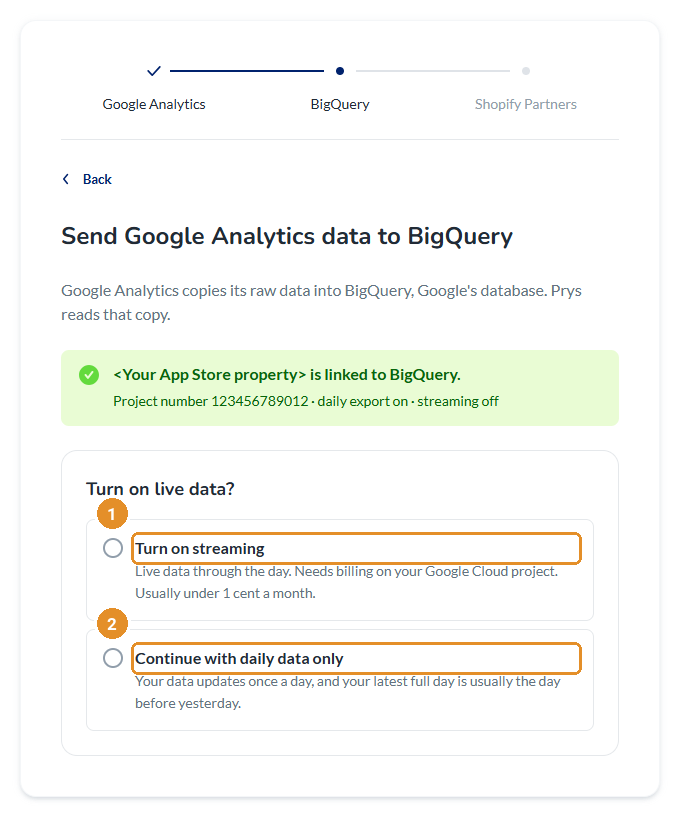
If streaming is off, Prys asks Turn on live data?:
1. Turn on streaming: live data through the day. It needs billing on your Google Cloud project, and usually costs under 1 cent a month (see What it costs below).
2. Continue with daily data only: your data updates once a day, and your latest full day is usually the day before yesterday.
Live data is part of Prys Premium and the free trial (see Plans, trial and billing).
Turn on streaming
You can do this during setup, or later from Settings › Company › Live data: off › Turn on streaming.
1. In Prys, on Turn on streaming, click Open BigQuery links. It opens Google Analytics on your property's BigQuery links.
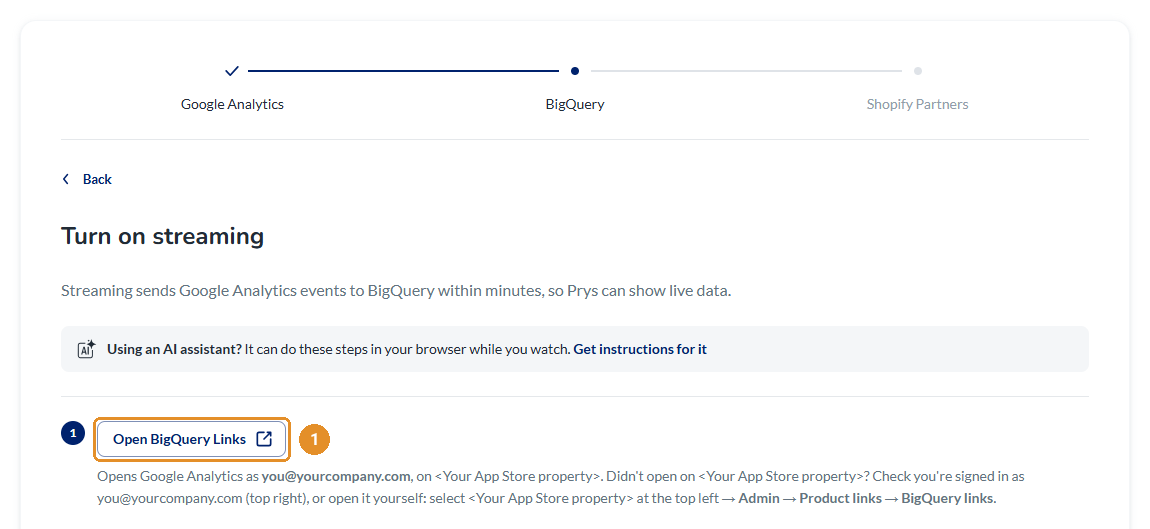
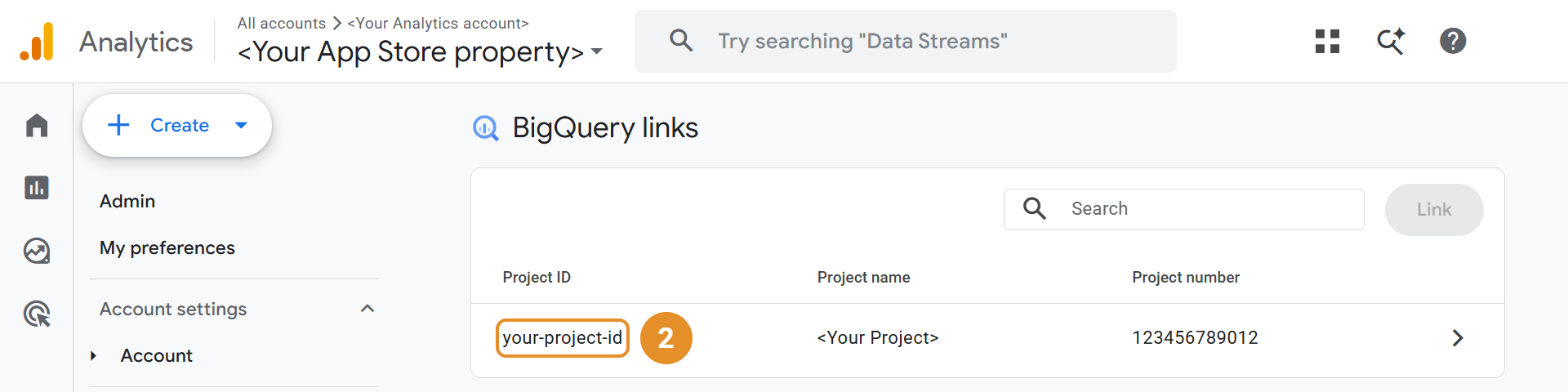
2. Click your link. The BigQuery Linking panel opens.
3. Under Event data › Export type, tick Streaming (best-effort). Keep Daily ticked.
4. Click Save at the top right.
5. Back in Prys, click Check streaming.

Live data starts after the next install of your app that reaches Google Analytics (see Install attribution).
Turn on billing
Google streams only when billing is on for the project.
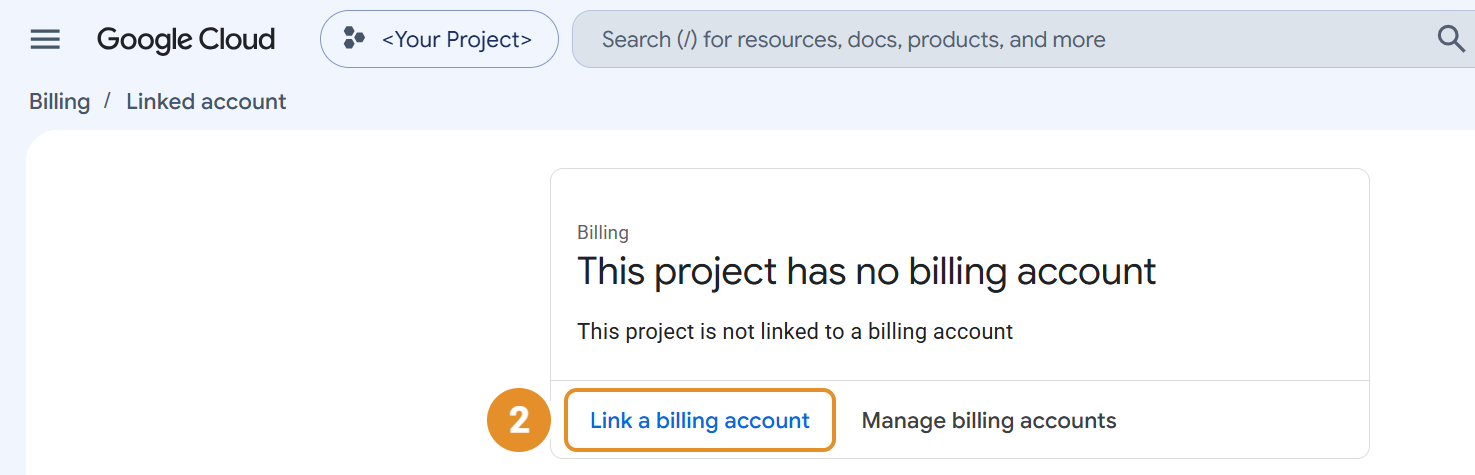
1. In Google Cloud, select your project and open Billing.
2. Click Link a billing account, then choose or create one. Google asks for payment details and charges only for what you use.
What it costs
For most apps, nothing.
- Turning billing on is free.
- BigQuery's free tier covers the first 10 GB of storage and 1 TB of queries each month. Prys's reads of your data (daily, and every 15 minutes with streaming) usually stay well inside it. They run in your project, so they count toward your free tier.
- Streaming is the one cost: $0.05 per GB, with no free allowance. That's about $0.05 per 600,000 events, so an app with 100,000 events a month pays under 1 cent.
- Without billing, Google limits the project (the BigQuery sandbox): tables are deleted after 60 days, storage is capped at 10 GB in total, and there's no streaming.
To check your costs, open Google Cloud › Billing › Reports and filter by BigQuery.
If something goes wrong
- "Link" is greyed out. Your Google account isn't Editor or Administrator on the property, or the property already has a BigQuery link (a property can have only one).
- <property> still isn't linked to BigQuery. Finish the steps above, then click Check link again.
- Daily export is off on your BigQuery link. Prys reads the daily export. Click Open BigQuery links, click your link, tick Daily, click Save, then Check link. The days the export was off stay empty: Google doesn't send them later.

- <property> is already linked to BigQuery, in project number …. Prys can read it there: click Give Prys a key for project number …. Want the data in another project instead? Delete that link, then create a new one. Your history in Prys starts again from the new link.
- <property> already sends data to project … (number …). <Other App>, another app in <Your Company>, uses this link, and its key already reads this project. Click Use the same key for <Your App> (no new key needed), or Create a new key instead.
- No link in the list (streaming). Your BigQuery link was removed. Link it again with the steps above.
- No live data has reached BigQuery since …. Billing is probably off. Turn it on (above). Your daily data isn't affected.
- Streaming is on, but Prys can't attribute <Your App>'s installs yet. Live data starts once it can: set up install attribution.
- No one has installed <Your App> since streaming started. Nothing to fix. Live data starts after the next install.
Related posts
- Next step: Give Prys read access to BigQuery